You Name It AE Plugin · v2.10.0 · Windows · macOS

Docs

What each of the 7 panels and 39 tools does, what it needs to run, how to install it, and what changed most recently. It is here to read before you buy, and to keep open while you work.

PanelsToolbox 39CatalogRelease notesInstall · specs
01

Panels

Each one is its own entry under
Window ▸ Extensions in After Effects.

The real panels, docked the way you might in After Effects. Each tab jumps to that panel’s row below.

Panel by panel

PanelWhat it isWhat it does
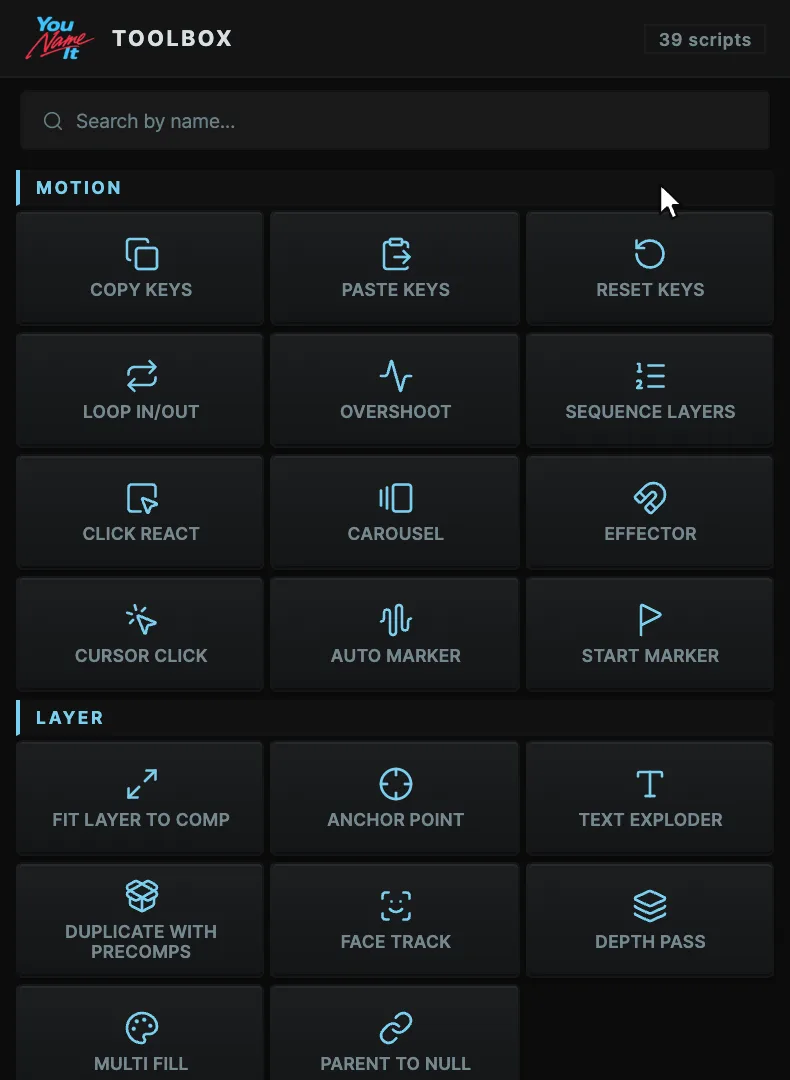
ToolboxOne-click tool gridFind one of the 39 tools by category or search, and press it. Hover a button and a 16-frame preview shows what that tool actually makes. The settings you last ran can be saved as a button of your own.
Usage
Requires
  • After Effects 2022 or later · macOS · Windows
  • License activation required (Support panel)
Selection

The Toolbox shows the 39 tools as buttons grouped by category. One button is one tool. What a tool acts on (the active comp, selected layers, keyframes) differs per tool and is listed in each tool's page.

Controls
ControlRange · defaultWhat it does
Search by name…textFilters all categories at once by tool name, description and category.
Motion10 toolsThe tools in the motion category.
Layer9 toolsThe tools in the layer category.
Comp6 toolsThe tools in the comp category.
Shape7 toolsThe tools in the shape category.
Stylize4 toolsThe tools in the stylize category.
Export3 toolsThe tools in the export category.
N tools—Shows the total number of tools at the right of the header. Filtering by search does not change it.
… — new in this version—Puts a ring and a note on one tool that is new in this version. It does not appear right after a new install, and it does not come back once the note is closed.
The plugin was updated.—Banner under the header, shown when After Effects was not restarted after an update.
Modifiers
  • Click — runs the tool or opens its dialog.
  • Alt+click — Round Corners only. Removes the corners this tool made (expression, knobs, masks) without opening the dialog.
  • Click again — Start Marker only. When every selected layer already has it, it is removed.
  • Hover — a tool preview appears attached to the button.
  • Shift · right-click · drag — not used in the Toolbox. Saving your own buttons, layout editing and the more menu live in the Custom panel.
Limits & undo
  • Ctrl+Z steps and re-apply rules differ per tool. They are in the same section of each tool's page.
  • On a computer that is not activated, the panel is locked.
  • The Toolbox button layout cannot be changed. The place for gathering only the tools you use is the Custom panel.
  • Right after an update, After Effects must be restarted for new features to work. Until the restart, new buttons report an error.
ChatSay it in plain languageDescribe what you want and layers and keyframes land in the comp you have open. It runs on Claude Code or Codex, installed on your computer and signed in with your own plan (Claude Pro or Max, or ChatGPT), and it needs an internet connection. The plan is not included in the price. Anything that changes AE asks you first, and checkpoints take it back.
Usage
Requires
  • Claude Code or Codex CLI (installed by the panel)
  • Claude Pro·Max or ChatGPT subscription (separate)
  • Internet connection
Selection

Nothing needs to be selected. When you send a message, the panel sends the active comp (name · size · fps · duration · current time · layer count) and the names of the selected layers (up to 5) along with it, so you can refer to the current comp and the selected layers in words.

Controls
ControlRange · defaultWhat it does
InstallClaude Code · CodexWhen the CLI is not found on this computer, an install row appears for each backend. Pressing it makes the panel run the official install script. If that fails, a command to paste into a terminal (PowerShell on Windows) appears.
Sign in with browser—Appears when you try to use a backend that is not signed in. Approving in the browser connects it. For Claude, you paste the code shown in the browser into the panel; for Codex, approving is enough.
Update—Appears in the model list next to the backend name and its installed version. Updates the CLI to the latest version. Models that need a newer CLI can't be picked in the list and show the version they need. Can't be pressed while any chat is responding or compacting.
Model & reasoning effort — Claude · Codex (applies from the next message)the list the backend reports · default = Claude's default modelThe model list is grouped by backend. Picking a model of another backend also switches the backend. Applies from the next message. Can't be changed while the open chat is responding. Another chat that is responding or compacting keeps its current response to the end and uses the new model from its next message.
Contextused tokens / window size · %Shows how much of the context window the current chat uses. The color changes at 70% or more and above 90%. Hover shows the input, cache read and cache creation token counts. The bar and % appear when the panel is wider than 350px, the numbers when it is wider than 580px. Codex shows no window size until it has answered once.
Compact—Summarizes the chat and carries on in a new session to reduce context. A divider stays at that point, and the summary can be expanded. Appears when the panel is wider than 490px.
Context is nearly full. Compacting summarizes the chat and carries on.80% or moreBanner shown at the top when context reaches 80% or more. It has a compact button. Once dismissed, it reappears when usage rises further.
SendEnterSends the message. Can't send during a response, compaction or CLI update.
Cancel—Appears only during a response. Stops the response.
Attach image (paste · drop · click)up to 5 · PNG · JPEG · WebP · GIFAttaches images by paste, drag or click. Images over 4 MB are scaled down and sent as JPEG.
Trust modeon · off · default offWhen on, plugin tools run without asking for permission. Turning it on asks for confirmation once. The setting stays after the panel is reopened. Can't be changed during a response.
Check—Finds and reports missing fonts, slots (nulls with child layers) whose position goes left and right and comes back, overlaps, and contrast in the active comp. Changes nothing. Appears when the panel is wider than 490px.
Fix—Appears on the result card when Check found something. Replaces missing fonts with Pretendard, and deletes the position keyframes of slots that go out and come back, holding them at the value of keyframe 1. Overlaps and contrast are left as they are. Fonts are replaced only when Pretendard is installed on this computer.
New chat—Opens a new chat. There is no limit on how many chats stay open.
All chats2 chats or moreOpens a list of all chats to search by name and pick from.
Settings—Opens the settings window in the panel header. It has Voice, Rules, Skills and Prompts tabs.
Voice—Sets the ElevenLabs API key, voice and model used by the tool that turns a script into speech. The key is issued separately at elevenlabs.io.
Rules—Edits the rules file (CLAUDE.md) that Claude Code reads. The panel does not pass this file to Codex.
Skillsbuilt-in · customSearches the skill list by name, description and trigger. A folder with a skill.md inside, placed in the skills folder (Open folder), shows up as a custom skill.
Prompts—Saves prompts you use often under a name. Typing / and the name in the input lets you pick it from a list and puts it in the input. Names are converted to lowercase letters, digits, - and _. If the body contains variables, a window to fill in their values appears when the prompt is used. Variable names use letters, digits, _ and -, and can't start with a digit or -.
Modifiers
  • Enter — sends the message. While a character is still being composed (Korean, Japanese, Chinese input), Enter only confirms it and does not send.
  • Shift+Enter — starts a new line.
  • Starting with / — a list of /help and saved prompts appears. ↑ · ↓ move, Enter · Tab pick, Esc closes.
  • Right-click a chat — menu: Rename · Close chat · Close others (when other chats exist) · Close to the right (when chats exist to the right) · Close all. Close others keeps the right-clicked chat and opens it.
  • Double-click a chat name — renames it. Enter confirms and Esc cancels. Up to 60 characters.
  • Drag or paste an image — dropping it on the input area or pasting it into the input attaches it.
  • Alt+click · Shift+click — none.
Limits & undo
  • Tools that only read run without asking. Tools that change the project or leave files on disk show a permission window before they run. The window shows the tool name and what it will run, and offers Allow · Always allow in this chat · Deny. If you don't answer within 2 minutes, the call is denied.
  • Always allow in this chat applies only to that tool in that chat. It is cleared when the panel is reopened or trust mode is changed.
  • Trust mode applies to all chats at once and covers plugin tools only. Claude Code's own file-writing tools still ask in trust mode.
  • One call of a tool that changes AE is one Ctrl+Z step. A call that changes several layers or keyframes at once is also one step. The model decides how many tools one request calls, so the number of Ctrl+Z steps that undo one request is not fixed.
  • Tools that only read open no undo group. When the active comp's long side exceeds 768 px, the frame preview creates a temporary downscaling comp and deletes it when the capture is done. This runs outside any undo group; whether it is recorded in the Ctrl+Z history is decided by AE, not by this panel.
  • When a response that called a tool that changes AE ends, the panel automatically fixes missing fonts and slot positions that go out and come back in the active comp (the same work as Fix). Slot positions and fonts are each fixed inside one undo group. The two groups open even when there is nothing to fix; whether an empty group is recorded in the Ctrl+Z history is decided by AE, not by this panel. A result card appears when the cleanup failed, something could not be changed, or overlaps or contrast remain.
  • Check changes nothing. Fix repairs slot positions and fonts each inside one undo group and, like the automatic cleanup, opens both groups even when there is nothing to fix.
  • Cancelling a response leaves the changes of tools that already ran.
  • If the code a tool will run saves or closes the project, the last saved .aep is copied to 00_DOC/.checkpoints in the project folder before it runs. Unsaved changes are not in this copy, and a project that was never saved gets no copy. The tool that reverts to a copy closes the current project without saving and opens the copy. Closing and opening a project can't be undone with Ctrl+Z.
  • The panel does not compact by itself. When the context window is nearly full, the CLI may summarize by itself, and a divider is shown at that point.
  • While the CLI updates, you can't send messages or change the model. If the automatic update does not finish, a command to paste into a terminal appears in the model list. After 10 minutes the panel stops waiting and messages can be sent again, while the update keeps running.
  • Messages are sent only from the open chat. Moving to another chat does not stop the response in progress, and it can still change AE. A permission request from that chat can be answered only by opening it, and is marked with a dot in the chat row.
  • When 4 chats are already responding, a new chat can't be created, and moving to another idle chat may also be blocked.
  • Chat needs a separate Claude (Pro · Max) or ChatGPT subscription. The subscription fee is not included in this product.
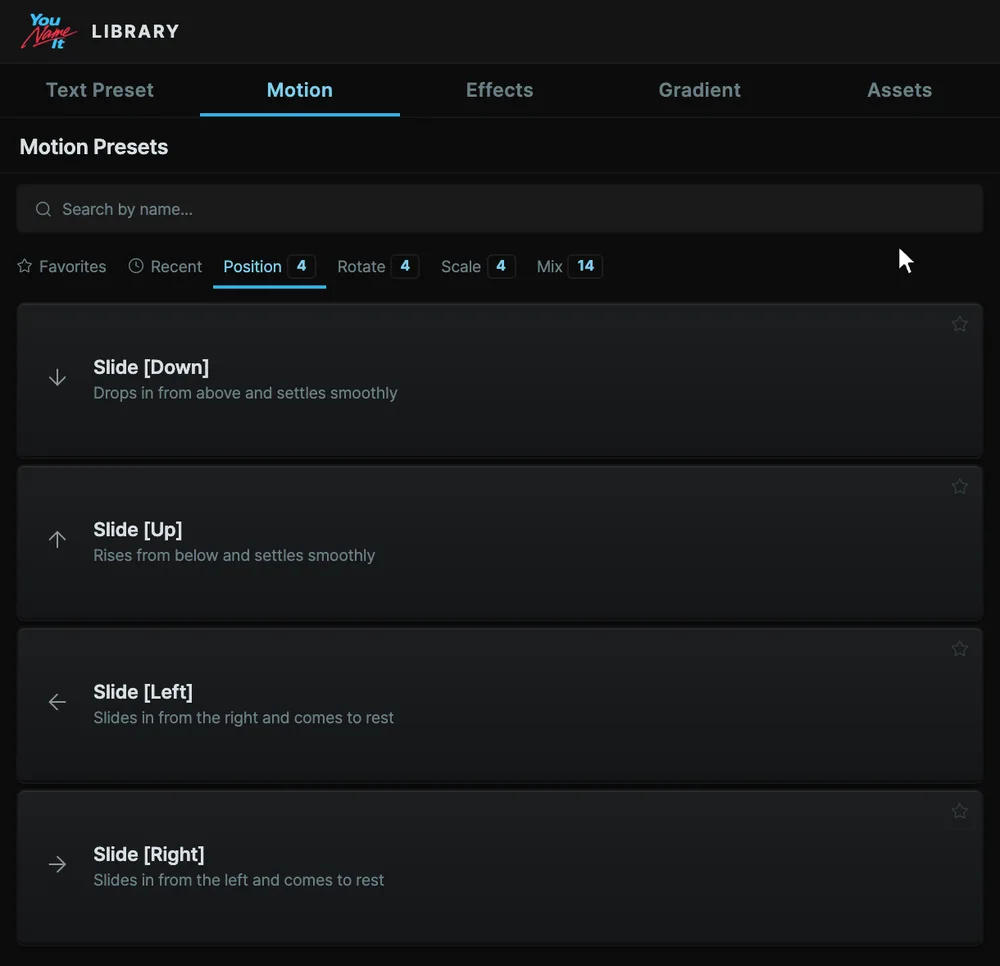
LibraryCatalog, five tabsText presets · motion · effects · gradients · assets. In and Out presets go on separately, timed with timeline markers. After they land you keep tuning them from the Effect Controls sliders, and re-applying never overwrites the values you set. Assets holds your own files, plus free image, GIF and sound search with your own API keys.
Usage
Requires
  • License activation required (Support panel)
  • Free search: your own API key per provider (Pexels · GIPHY · Freesound)
  • Animated comp card previews: FFmpeg
Selection

The Library is the panel for taking out what you have made, and each tab has its own target. Text presets, motion and gradients go on the selected layers in the open comp, effect presets go on the selected layers or on a new layer (it depends on the preset), comps go into the project (and can also go into the open comp), and assets go into the open comp.

Controls
ControlRange · defaultWhat it does
Text Preset61 built inPuts a text animator on text layers. Clicking a card opens the apply window, where In and Out are chosen separately.
Motion26 built inPuts an In or Out motion on layers. Clicking a card opens the apply window. An amount knob, plus easing knobs depending on the easing, stay in the layer's Effect Controls.
My Effects3 shippedApplies effect presets. Presets you capture or import collect in the same list.
Compempty at the startThe comp library. Stores the open comp and imports it in another project.
Gradient62 built inPuts a gradient on the selected layers with Gradient Ramp. Clicking a card applies it right away.
Assets—Keeps GIF, image, video and audio files and places them in the open comp.
Search by name…—Filters the current tab's list by the search text. Not on the Assets tab.
Favorites—Shows only favorite items. Clicking the star on a card adds it to favorites, and clicking again takes it off. Not on the Assets tab.
Recent—Shows only recently used items. Not on the Assets tab.
+ Create new—Gradient and Text Preset tabs. Opens the editor to make a new one.
Store this compname default = comp nameComp tab. Names the open comp and stores it in the library.
Reload—Comp tab. Re-reads the library folder.
+ Add—Assets tab. Opens a file picker and adds files to the kind chosen now.
Free source API keys3 providersAssets tab. Opens the window for the Pexels, GIPHY and Freesound API keys.
My filesdefaultAssets tab. Shows the files you have added.
Free search (GIPHY·Pexels·Freesound)—Assets tab. Searches the providers. Clicking a result downloads the file, adds it to My files and places it in the open comp. Pexels covers images and video, GIPHY covers GIFs, and Freesound covers audio.
Copy credit—Assets tab, My files, on cards downloaded from Pexels or Freesound (hover the card). Copies a one-line credit — creator, source link and, for Freesound, the licence — to the clipboard. Every Pexels and Freesound card also shows who made it, with links to the creator or page and to the licence. Pexels asks for the photographer's credit where possible, and CC BY sounds require the creator's credit when you publish the result, so paste the line into the video's description. Nothing is written into the project.
Modifiers
  • Click — gradient and effect cards apply right away. Text preset and motion cards open the apply window after reading the In and Out already on the selected layer. A comp card imports into the project, and when a comp is open it asks whether to add it to that comp. An asset card imports the file into the project and places it in the open comp.
  • Click again — the same card runs once more. While it runs and for 1.5 s after it ends, that card takes no clicks.
  • Right-click — effect card: Export .donyspack · Show in folder · Open source link (only for presets whose source is a web address) · Delete preset. Comp card: Rename · Add to favorites or Remove from favorites · Show in folder · Delete from library. Cards on other tabs have no right-click menu.
  • Drag — dropping files on the Assets tab adds them as assets. Other tabs have no drag action.
  • Alt · Shift · double-click — none.
Limits & undo
  • Applying a text preset, motion, gradient or effect preset, or importing a comp, takes one Ctrl+Z per run. Storing a comp does not change the project, so there is nothing to undo.
  • The comp library stores a copy of the project file saved on disk as .aep. A project that was never saved and an XML project (.aepx) are not stored. Comps stored from the same project share one copy.
  • When there are changes since the last save, a confirmation window appears. Choosing to save and store saves the project in place (same as File › Save, not Save As) and makes the copy after that. If the open comp changes or another project is opened while you name it, nothing is stored.
  • Storing takes 8 frames from the comp and builds a preview that loops for 1 second; it plays when you hover over the card. Without FFmpeg, only one still image remains. FFmpeg is looked for in the plugin folder (where the Toolbox's GIF Converter downloads it), on the PATH, and in common install paths, in that order. Storing finishes even when the preview cannot be built.
  • Importing brings the whole copy into the project, moves the target comp and the items it uses (nested comps, footage) to the top level of the Project panel, and deletes the rest. If the copy does not contain that comp as it was when stored, the import fails and leaves nothing behind.
  • Importing the same comp card again brings in one more copy.
  • The panel waits for an import result about 50 s per MB of the copy, with a minimum of 10 s. This is not a limit on comp length. When the wait runs out and the panel shows a failure, After Effects still finishes the import.
  • Deleting a comp card asks for confirmation and removes that card's folder, and the copy if no other card uses it, from disk. The original project and comps already imported stay.
  • Adding an asset copies the file. Deleting an asset card removes only that copy, without confirmation.
  • Free search needs your own API key for each provider. Kinds covered by a provider without a key are not searched. When a provider's request limit is exceeded, no results come until the limit resets.
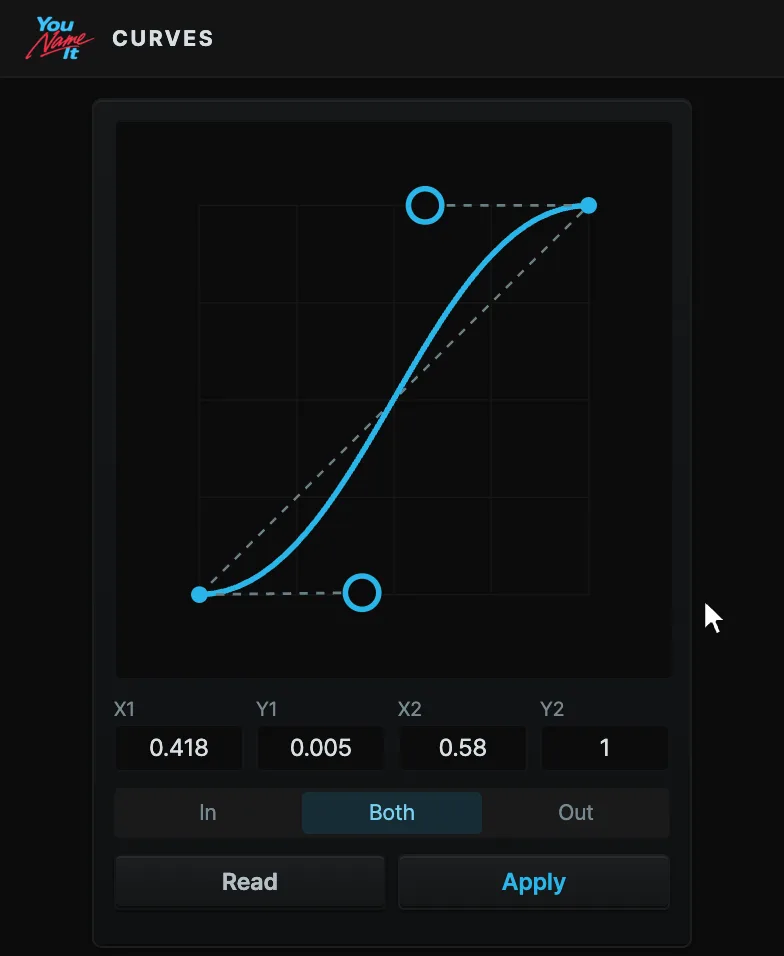
CurvesBezier easing editorDrag the handles or type the numbers. It reads the easing currently on an AE keyframe so you can put the same feel somewhere else. 19 built-in curves plus your own.
Usage
Requires
  • Selected keyframes (Read · Elastic · Bounce need 2 or more)
Selection

Curves writes easing to the selected keyframes and reads the curve between two selected keyframes. Read needs two or more keyframes selected on one property; Elastic and Bounce need two neighboring keyframes selected on the same property.

Controls
ControlRange · defaultWhat it does
Bezierdefault mode · starting curve (0.42, 0, 0.58, 1)Writes one curve as the easing of the selected keyframes. Drag the two handles on the graph or type numbers into X1 · Y1 · X2 · Y2. The X inputs clamp to 0–1 and the Y inputs are unlimited.
Elastic—Leaves the start value fast, passes the end value, and settles with smaller and smaller wobbles. It adds one keyframe at every bend.
Bounce—Speeds up from the start value as if falling, hits the end value, and settles with lower and lower rebounds. It adds one keyframe at every hit and at the top of every rebound.
In—Bezier mode only. Writes only the incoming easing of each selected keyframe (end handle X2 · Y2).
BothdefaultBezier mode only. Writes both the incoming and the outgoing easing of each selected keyframe.
Out—Bezier mode only. Writes only the outgoing easing of each selected keyframe (start handle X1 · Y1).
Overshoot5–80% · default 30%Elastic mode only. Size of the initial overshoot past the end value (relative to the travel).
Wobbles1–8 · default 3Elastic mode only. Number of wobbles.
Height5–60% · default 25%Bounce mode only. Height of the initial rebound (relative to the travel).
Bounces1–8 · default 3Bounce mode only. Number of rebounds.
Read—Reads the curve between two selected keyframes onto the graph and switches to Bezier mode. It shows a warning when the slope can't be derived (for example when both keyframes have the same value).
Apply—Writes the current mode's curve to the selected keyframes. Elastic and Bounce add keyframes between each pair of neighboring keyframes; the hollow dots on the graph are the keyframes they add.
+ Save current curveshown only on the saved-curves tabNames the graph's Bezier curve (X1 · Y1 · X2 · Y2) and adds it to your saved curves. Elastic and Bounce settings are not saved.
Copy—Click copies the easing of the selected keyframes to the easing clipboard.
Paste—Click pastes the easing from the easing clipboard onto the selected keyframes. The two numbers inside the button count the keyframes in the easing clipboard and the keyframes copied in this panel; a number is hidden when it is 0.
Modifiers
  • Copy Alt+click — copies the keyframes with their values, easing and interpolation. Alt+Shift+click does the same.
  • Copy Shift+click — clears the easing clipboard.
  • Paste Shift+click — pastes the easing, and where the copied keyframe had equal incoming and outgoing speeds, makes the two speeds equal in size on the pasted keyframe too.
  • Paste Alt+click — pastes the copied keyframes starting at the playhead.
  • Paste Alt+Shift+click — pastes the keyframes in reverse. The spacing stays as it was, the value order flips, and the incoming and outgoing sides of the easing and interpolation swap.
  • Right-click (copy · paste buttons) — opens a menu with every action of that button. Items that have a modifier show it beside them.
  • Paste values in the paste right-click menu — has no modifier and is only in this menu. It puts the values of the keyframes held in the easing clipboard onto the selected keyframes and keeps their time and easing.
  • Drag a handle on the Bezier graph — moves the start or end handle. Horizontal clamps to 0–1 and vertical to −2–2; the drag ends when the pointer leaves the graph.
  • Drag the big dot on the Elastic or Bounce graph — up and down change the size (Elastic grows as you drag up, Bounce as you drag down), left and right change the count (more toward the left). It moves the same values as the knobs.
  • Bounce drag axis lock — once the pointer has moved 5 px or more after pressing, the drag locks to whichever axis moved more, and only that axis changes until release. Elastic does not lock.
Limits & undo
  • Apply (Bezier · Elastic · Bounce), paste easing (including Shift), paste values and paste keyframes (Alt · Alt+Shift) each undo with one Ctrl+Z. Copy, clearing the easing clipboard and Read don't change the project, so they leave no undo step.
  • Bezier apply overwrites the easing of the selected keyframes, and applying the same curve again gives the same result. Elastic and Bounce add keyframes on every apply and do not delete existing keyframes.
  • Keyframes added by Elastic and Bounce snap to frames, and bends that land on the same frame are left out. On properties with a range, such as Opacity, overshooting values are capped at the limit, and a curved Position path is straightened. Only properties with numeric values (numbers · position · scale · color and similar) take it, and spans between two keyframes with the same value are skipped. Each case shows a notice in the result.
  • A handle with X1 at 0.001 or below, or X2 at 0.999 or above, can't hold a slope because of the After Effects minimum Influence (0.1%). That handle's Y is discarded with a warning; when its Y is 0 (1 on the X2 side) nothing changes, so there is no warning.
  • A curve with Y outside 0–1 applied to Position separates its dimensions into X·Y (plus Z on 3D layers) and applies in the same click. The keyframes you selected stay selected on the separated X·Y·Z Position, and the result message shows how many were separated. Spatial properties whose dimensions cannot be separated, such as Anchor Point or an effect's point value, stop the overshoot at the keyframe value and show a warning.
  • Read looks at two selected keyframes on one property. On properties with per-axis easing, such as Scale, it reads the X-axis easing only.
  • The curve a Bezier apply actually wrote is drawn over the graph. If the next Bezier apply fails, this curve stays, turns into a faint dotted line and gets a mark saying it is the last applied one.
  • Paste easing needs the number of selected keyframes on each target property to equal the copied count or a multiple of it. Otherwise that property is left unchanged and a notice is shown. Paste values only goes onto properties of the same type as the copied one.
  • Copy keyframes (Alt) takes, for each selected layer, every keyframe of one selected property that has keyframes. Paste keyframes goes onto each selected property, and when there are more targets than copied properties, the copied ones are reused in order.
  • The easing clipboard is stored in the After Effects preferences, survives a restart, and is the same in every panel. The keyframe clipboard is separate per panel: it is not shared with the Curve Editor window in Toolbox · Custom 1, and it is gone after After Effects restarts.
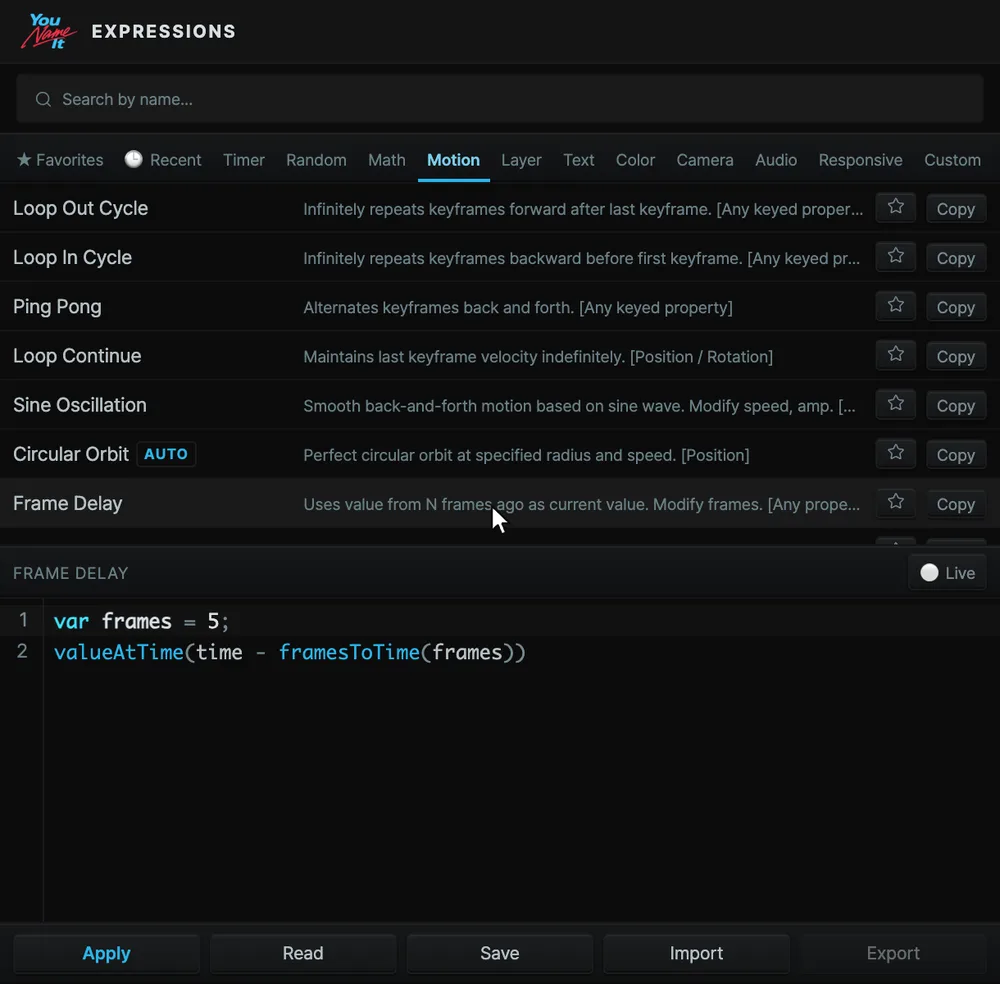
ExpressionsExpression editor69 built-in snippets in 10 groups, plus a Custom tab for your own. With Live Preview on, an edit applies itself 0.6s later, so there is no toggling off and on to check.
Usage
Requires
  • Active comp · selected layer · target property
Selection

Expressions is the panel that applies and reads expressions, and its target is the selected property on a selected layer in the active comp. Items with the auto badge go onto a fixed property of the selected layer even when no property is selected.

Controls
ControlRange · defaultWhat it does
Search by name…textFilters all expressions by name, description and category, regardless of the category tab.
Favorites—Shows only items marked with the star on their card.
Recent—Shows only items recently applied with the Apply button.
Timer7 itemsCategory tab. Timer expressions.
Random7 itemsCategory tab. Random expressions.
Math8 itemsCategory tab. Math expressions.
Motion11 items · tab shown on openCategory tab. Motion expressions.
Layer8 itemsCategory tab. Layer expressions.
Text8 itemsCategory tab. Text expressions.
Color5 itemsCategory tab. Color expressions.
Camera5 itemsCategory tab. Camera expressions.
Audio4 itemsCategory tab. Audio expressions.
Responsive6 itemsCategory tab. Responsive expressions.
Customsaved by youThe expressions you saved or imported.
Copy—Copy button on a list card. Copies that expression's code to the clipboard.
Delete—Delete button, on custom cards only. Deletes without confirmation.
Expression codecode editorPressing a card puts that expression's code here. It can be edited and applied.
Liveon/off · default offWhen on, applies automatically 600 ms after it is turned on and after every code change (including picking a card). If an apply is refused, the reason stays above the editor.
Import—Imports an expression file into Custom. Items that collide with existing ones are added separately instead of overwriting them.
Export—Exports all custom expressions to a file. Disabled when there are no custom expressions.
Savename inputSaves the editor's code as a custom expression. Disabled when the code is empty.
Read—Reads the expression on the selected property into the editor.
Apply—Applies the editor's code to the target property. Disabled when the code is empty.
Modifiers
  • Click a card — puts its code into the editor. It does not apply it (with live on, it applies 600 ms later).
  • Enter — in the save name field, same as the save button.
  • Alt · Shift · right-click · drag — not used.
Limits & undo
  • One apply is one undo group, so one Ctrl+Z undoes it. Live adds one undo group for each automatic apply. An apply refused for a missing comp, layer or property makes no group.
  • Applying replaces the expression that was on the target property with the new code.
  • Even with several layers or properties selected, the expression goes onto one property only, the one found earliest.
  • The target of an auto-badge item is one of Source Text · Position · Scale · Opacity · Rotation, and a property you select directly takes priority.
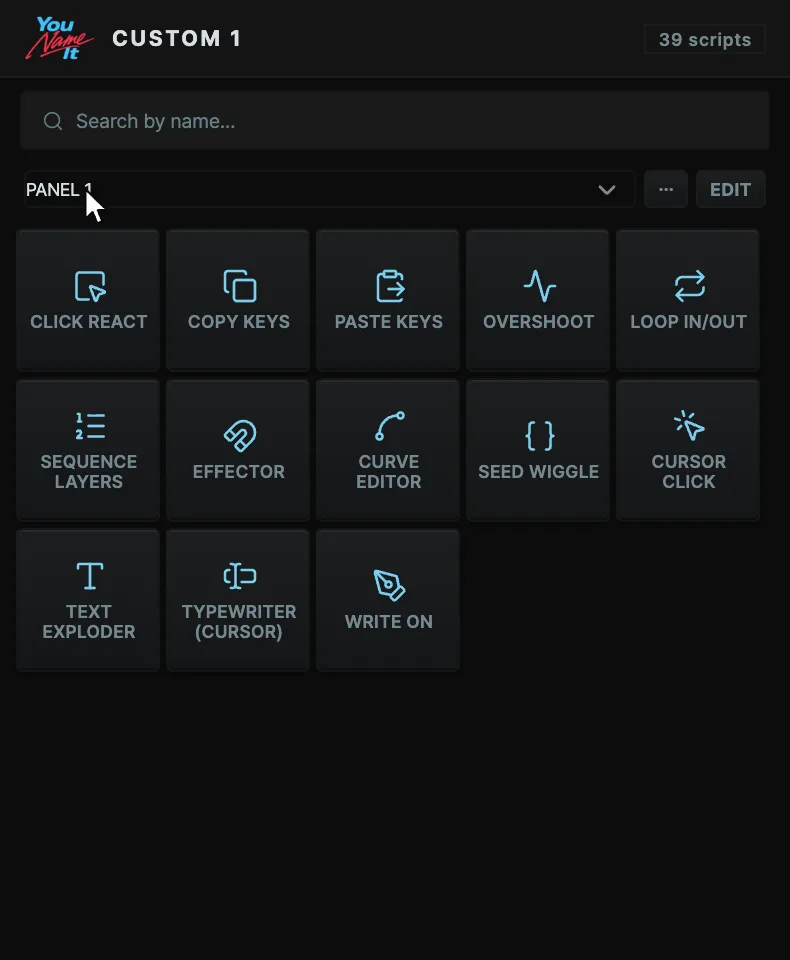
Custom 1A grid you lay out yourselfPick only what you use and put it where you want it. Besides tools, gradients, text presets, expressions, effects and curves share the same grid. Save several layouts, switch between them from a dropdown, pass them around as files.
Usage
Requires
  • Same app as the Toolbox · exactly 1 slot
Selection

Custom is a panel where you arrange chosen tools, saved-settings buttons and library items (gradients, text presets, expressions, effect presets, Curve Editor) on a grid, and a tool button acts on the same target as the same tool in the Toolbox. There is exactly one slot, Custom 1, and one of several saved panels is chosen from a dropdown to show in it.

Controls
ControlRange · defaultWhat it does
Show an existing panel…list of saved panelsIn a window with no panel, shows a panel you made earlier. While a panel is shown, the dropdown at the top switches it.
Create panel—In a window with no panel, creates a new panel and opens it in edit mode.
More5 itemsSettings · new panel · export · import · delete panel. Rarely used and destructive actions live in this menu.
Edit—Turns edit mode on. In edit mode, pressing a button selects it instead of running it.
Done—Turns edit mode off.
Panel nametextThe panel name. Changed in Settings in the more menu.
Cell W24–160 px · default 58 × 58Cell width × cell height, set in two number fields.
Link width and heighton/off · default onWhen on, width and height change together.
Spacing0–24 px · default 3Space between cells.
Iconsmall · medium · large · default mediumIcon size.
+ Cellon/off · default onShows a + in empty cells. When off, an empty cell opens the tool gallery only in edit mode.
Button colorcolor · default noneBorder and icon color of the selected button. The clear-color button empties it.
Size1–8 cells × 1–8 cellsWidth × height of the selected button, in cells. Overlapping items are pushed down.
Icon nameicon nameThe icon of the selected button. An empty or unknown name keeps the original icon.
Save last settings as a buttonname inputFreezes the settings of the tool you ran last into one button and puts it in the earliest empty cell. Appears only after a tool that takes settings has run successfully in this window.
Search tools…textThe search field of the tool gallery that opens when you press an empty cell. The chosen item goes into the pressed cell.
Search by name…textWhile searching, the categorized tool list replaces the grid.
Add to My Tools—The star in the search list. Adds that tool to the earliest empty cell of this panel, or takes it off.
Modifiers
  • Click — a tool button runs like the same tool in the Toolbox, and Alt+click is the same (Round Corners removes). A saved-settings button runs with its saved settings without a dialog. A library item applies at once: a text preset goes to the In slot, and the Curve Editor item opens the curve window.
  • Drag a button in edit mode — moves it on the grid. Overlapping items are pushed down.
  • Drag a button's lower-right corner in edit mode — resizes it. The width stops at the panel edge.
  • Click in edit mode — does not run; it selects the button and opens the color, size and icon bar. Clicking again deselects it.
  • × in edit mode — takes the button off the grid. For a saved-settings button, its definition is deleted too.
  • Right-click — not used. Panel actions are in the more menu.
  • Shift — not used.
Limits & undo
  • There is exactly 1 slot (Custom 1). Several panels are handled as saved panels, not as slots. A new install has 0 panels.
  • Panel layouts are saved in one file in the app data folder. A layout changed in another After Effects window shows up within 3 seconds.
  • Export and import move the layout of one panel, with the saved-settings buttons in it, to and from a JSON file. An imported panel is added as a new panel.
  • Layout editing does not touch the AE project, so Ctrl+Z does not undo it. Ctrl+Z for a tool run from a button follows that tool's page.
  • Delete panel runs without confirmation. A window that was showing that panel falls back to "no panel".
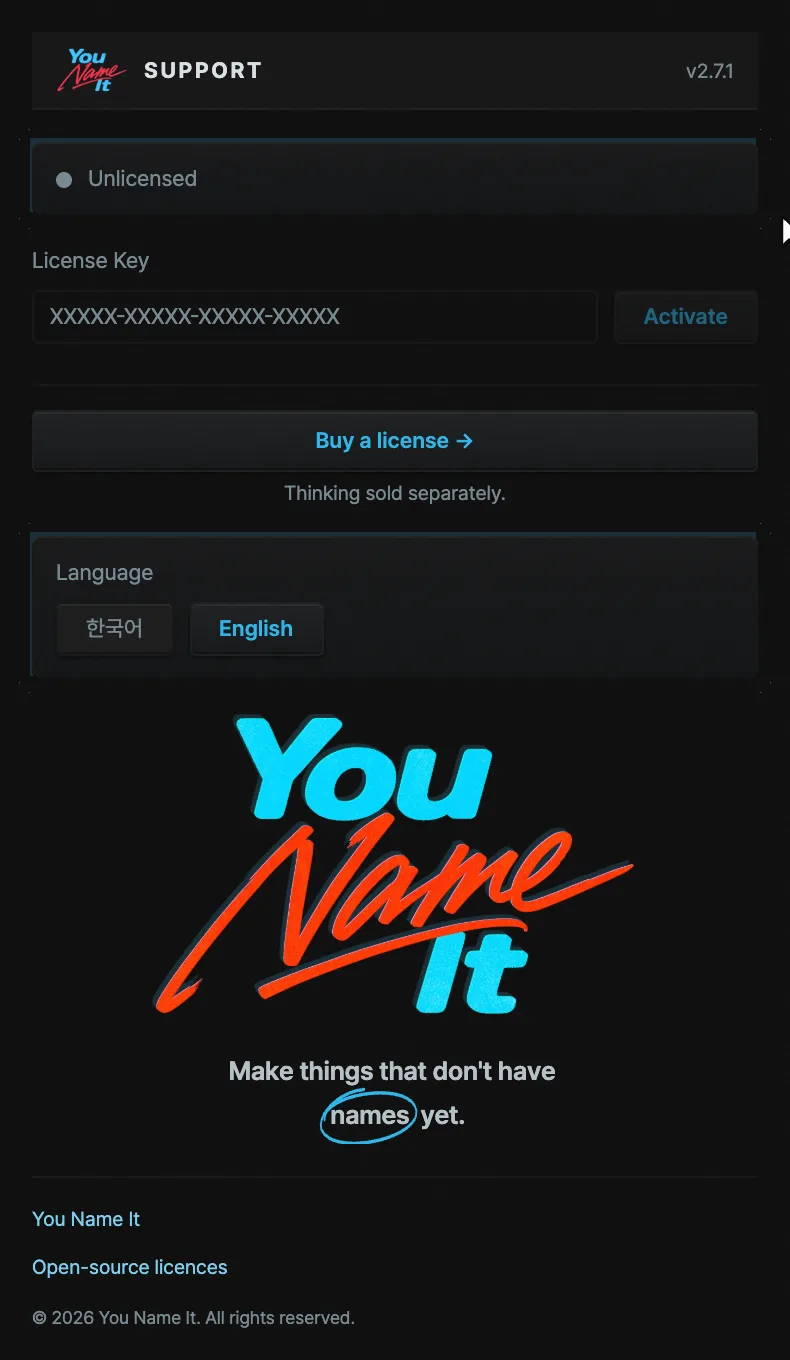
SupportLicense · updatesActivate or deactivate this computer, in-app updates (downloaded and installed), language, third-party notices. It is the one panel that opens without a license, and the key goes in here.
Usage
Requires
  • License key (payment confirmation email · customer portal)
  • Activation and update checks need an internet connection
Selection

Support collects license activation, updates and guide links, and there is nothing to select. This panel opens before activation too, and the other panels open only after you activate here.

Controls
ControlRange · defaultWhat it does
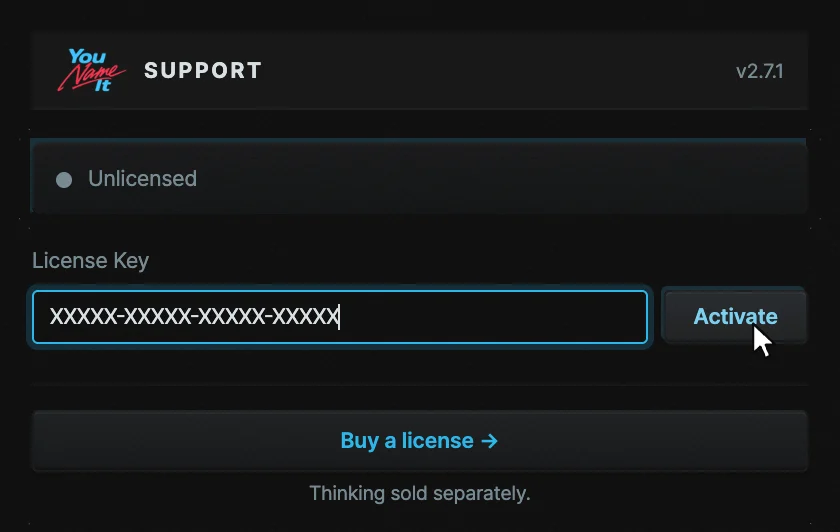
License keytextThe field for the license key from the payment confirmation email. Shown only on the not-activated screen.
Activate—Activates this computer with the key.
… this computer—Deactivates this computer. After a confirmation sheet, six panels lock and one activation seat is freed. The same key can activate again.
Language한국어 · English · default 한국어The panel display language. The other panels follow within 5 seconds.
Install now—Install button on the card shown when a new version exists. Downloads and overwrites the extension folder.
Skip this version—Skips this version's notice. Nothing is shown again until the next version is released.
What's new · manual install—Goes to the changes and manual install page.
Docs—Link to the usage guide.
Computers—Manages activated computers in the customer portal.
Contact—Contact email link.
Open-source licenses—Opens the third-party open-source license notices.
Buy →—Link to the purchase page. Shown only on the not-activated screen.
Modifiers
  • Enter — in the license key field, same as the activate button.
  • Alt · Shift · right-click · drag — not used.
Limits & undo
  • One license key activates up to 2 computers. When the limit is reached, one other computer must be deactivated in the customer portal, and a portal link appears under the key field.
  • The license is re-checked quietly online every 7 days. If it cannot be checked for 30 days after the last successful check, the panels lock. Closing and reopening this panel while online checks again.
  • If activation was released in the customer portal, or the key was refunded or revoked, the state becomes deactivated. If the key is still valid, it can be entered again to activate.
  • The Chat panel needs a separate Claude (Pro · Max) or ChatGPT subscription.
  • An update applies after After Effects is restarted. If the extension is installed in an all-users location, there is no write permission, automatic install does not work, and the files must be extracted into the extension folder by hand.
  • A skipped version cannot be fetched again inside the panel. It can be downloaded from the update page on the website.
02

Toolbox 39

Hover or tap a plate
and it plays what the tool makes.

Each preview below is 16 frames rendered in real After Effects, the same image the panel shows above the button, re-baked whenever the tool changes.

Motion

10 tools · keyframes · easing · rigs

Reset Keys

Delete all transform keyframes

Usage
Selection

Select one or more layers in the active comp. All keyframes on the selected layers' Transform properties are deleted.

Controls

None — applies on click.

Modifiers

None.

Limits & undo
  • Undo: one Ctrl+Z.
  • Re-apply: with no keyframes left, nothing changes.
  • Keyframes are deleted from the last one backward, so each property keeps the value of its earliest keyframe, wherever the playhead is.
  • Only the Transform group of the selected layers is affected. Keyframes on effects, masks, text and shape properties are left alone.
  • Expressions are left alone.

Loop In/Out

Apply loop expression

Usage
Selection

Select one or more layers in the active comp. Every Transform property with 2 or more keyframes gets a loopOut("cycle") expression.

Controls

None — applies on click.

Modifiers

None.

Limits & undo
  • Undo: one Ctrl+Z.
  • Re-apply: the same expression is written again, so the result is identical.
  • Properties with fewer than 2 keyframes are skipped. If no property qualifies, the run ends with an error.
  • An expression already on a target property is overwritten.
  • Only loopOut is applied. loopIn is not created.
  • There is no remove action. The expression is deleted from the property by hand.

Overshoot

Add springy overshoot expression

Usage
Selection

Select one or more layers in the active comp. Every Transform property with 2 or more keyframes gets an overshoot expression, and its values appear in the layer's Effect Controls as one Overshoot · Controls effect.

Controls
ControlRange · defaultWhat it does
PresetBounce · Elastic · Gentle · Custom · default Bounce (Custom when the dialog opens on layers this tool already set up)Fills amplitude, frequency and decay together. Bounce is 0.05 · 3 · 5, Elastic is 0.10 · 4 · 2, Gentle is 0.03 · 2 · 8. Editing a value switches to Custom.
Amp0.01–0.5 · default 0.05Size of the rebound.
Freq0.5–10 · default 3How fast the rebound oscillates.
Decay0.5–15 · default 5How fast the rebound dies out.
Modifiers

None.

Limits & undo
  • Undo: one Ctrl+Z.
  • Re-apply: replaces only the expression the tool wrote. The dialog opens filled with the values of the selected layer at the head of the selection that already carries this tool, and applying writes those values to the selected layers' Overshoot · Controls. Items that carry keyframes or expressions are not touched.
  • After applying, adjust with Overshoot · Controls (Amp · Freq · Decay) in Effect Controls. Each value is clamped to its range (Amp 0.01–0.5 · Freq 0.5–10 · Decay 0.5–15). If the effect is duplicated, only the upper one is read.
  • Properties with fewer than 2 keyframes are skipped. Properties that carry a hand-written expression are skipped too, and the count is reported. If no property qualifies, the run ends with an error.
  • Cameras, lights, 3D mesh layers and 3D model layers cannot take effects, so they get no controls and keep the values from the moment of applying.
  • A rig made by an older version of the plugin (the one with separate knobs such as Overshoot · Amp (0.01~0.5) in Effect Controls) still plays but cannot be applied again, and the dialog does not open. Delete those three knobs and apply, and the new scheme takes over.

Sequence Layers

Arrange layers sequentially

Usage
Selection

Select 2 or more layers in the active comp. Stagger offsets the selected keyframes, or the layers when no keyframes are selected, by a frame interval; Chain joins the layers end to end regardless of any keyframe selection.

Controls
ControlRange · defaultWhat it does
ModeStagger · Chain · default StaggerStagger shifts each layer by a set number of frames in turn. Chain places each layer's in point over the previous layer's out point.
Framesinteger ≥ 1 · default 3Stagger mode only. The gap between layers, in frames.
Overlap (frames)integer ≥ 0 · default 10Chain mode only. How far consecutive layers overlap, in frames. 0 makes them butt-join. It is capped at the previous layer's length minus one frame.
Direction↓ Forward · ↑ Reverse · ⤮ Random · default ↓ ForwardIn Stagger, ↓ Forward follows layer index (top to bottom in the timeline). ↑ Reverse flips the order and ⤮ Random shuffles the offsets. Chain orders by timeline appearance (in-point order) and does not offer ⤮ Random.
Crossfadeon/off · default onChain mode only. Dissolves opacity across the overlap. With a 0-frame overlap it does nothing.
Modifiers

None.

Limits & undo
  • Undo: one Ctrl+Z.
  • Re-apply (Stagger, layers): the layers are realigned from the in point of the topmost selected layer, so ↓ Forward gives the same result on every press. With ↑ Reverse the reference layer moves too, so each press shifts everything later, and ⤮ Random reshuffles on every press.
  • Re-apply (Stagger, keyframes): the gap is added to the selected keyframes' current times, so it is not idempotent.
  • Re-apply (Chain): the layers are rejoined in timeline order, so ↓ Forward gives the same result, and ↑ Reverse flips the order on every press.
  • In keyframe mode each keyframe is removed and recreated at its new time with the same value, interpolation and easing. Spatial handles on the Position path are not carried over.
  • A crossfade is skipped on a layer whose opacity already has keyframes or an expression, or that is too short. The skipped count is reported.
  • Selecting fewer than 2 layers ends with an error.

Click React

Press-and-release click reaction on selected layers (scale + brightness, spring return)

Usage
Selection

Select one or more layers in the active comp. Each selected layer gets a press (a scale and brightness change) and a spring release, written as expressions, and a Click React marker that holds the start time.

Controls
ControlRange · defaultWhat it does
Press scale (%)50–150 % · default 94Scale while pressed.
Brightness shift−100–100 · default −14Brightness change while pressed (the Brightness value of Brightness & Contrast). At 0 the Brightness & Contrast effect (Click React · Dim) is still added but changes nothing, so Brightness can be raised later in Effect Controls.
Bounce0–1 · default 0.5Bounciness of the release. Shown beside it as the damping ratio ζ = 1 − 0.85 × bounce; a lower ζ (higher bounce) bounces more.
Layer offset (s)0–10 s · default 0Gap between the start times of the selected layers. In selection order, layer i (counting from 0) starts at start time + i × gap.
Press (s)0.01–10 s · default 0.15Advanced. Time taken to press.
Hold (s)0–10 s · default 0Advanced. Time held down.
Release (s)0.05–10 s · default 0.45Advanced. Time taken to release.
Start time (s)≥ 0 s · default empty (Current time)Advanced. When empty, the reaction starts at the current time.
Modifiers

None.

Limits & undo
  • Undo: one Ctrl+Z.
  • Re-apply: only the expressions the tool wrote are replaced, so nothing stacks. An existing Click React marker is not moved, and its position sets the timing. Knobs without keyframes or expressions are overwritten with the dialog values.
  • The scale expression multiplies value, so scale animation already on the layer is kept.
  • Properties that carry a hand-written expression are skipped, and the count is reported.
  • Cameras, lights, 3D mesh layers and 3D model layers are skipped.
  • After applying, adjust with one effect per layer in Effect Controls, Click React · Controls (Press Scale %, Brightness, Press s, Hold s, Release s, Bounce, Delay s — the ranges match the dialog), and drag the Click React marker on the timeline to move the start. Delay s is a fine offset on top of the marker and starts at 0.
  • A layer that an older version of the plugin set up (its knobs are separate Click React · … effects) still plays, but applying again is refused. Delete those knobs in Effect Controls and apply again — the expressions switch to the new controls and the knob values are set from the dialog.
  • If the Click React · Controls effect is duplicated, only the upper one is read. Renaming it is fine.
  • Timing is not linked to Cursor Click. The two tools are independent.

Carousel

Make a carousel from the selected layers — it goes in as one comp of its own; switch presets in Effect Controls of the Controls layer inside it

Usage
Requires
  • After Effects active comp
  • comp expression engine = JavaScript
Selection

An active comp is required. A new carousel turns the layers selected when the dialog opens into cards. Footage, comp, solid, text and shape layers are accepted; cameras, lights, nulls, adjustment layers, 3D meshes/models, audio-only layers and the carousel's own layers (including another carousel's stage layer) are skipped. The pool holds up to 48 cards. When the selection is shorter than the preset's default card count, the Missing cards setting decides what happens (table below); with nothing selected, numbered cards preview the preset. Layers that become cards are hidden. Applying creates a separate stage comp, Carousel (N), and puts a single 2D precomp layer holding it (the stage layer) at the top of your comp. N is unique across the project, and the stage comp goes into a Carousel (N) · <your comp name> folder in the Project panel. The stage layer gets no name of its own, so it shows the comp's name and follows a rename. The stage comp takes your comp's size, pixel aspect, frame rate, duration, 3D renderer and motion blur settings. The cards, camera, controls and engine all live inside the stage comp. The control null carries one effect in Effect Controls, Carousel Controls: the Preset dropdown at the top, the nine basic knobs below it and a folded Advanced group (28 knobs). Each slider only moves inside its knob range (for example Falloff % runs 10 to 400), and Direction is a Reverse checkbox. Renaming the effect does not break the carousel. The dialog opens a carousel for editing when its stage layer is selected in your comp or when you are inside its stage comp, and shows one line naming the comp the carousel lives in. The header's Carousel to edit dropdown switches to another carousel reachable from the current comp or to New carousel (inside a stage comp there is no New carousel). Card add, fill and path follow read the selection at the moment the button is clicked.

Controls
ControlRange · defaultWhat it does
Preset35 layouts · default Ring StepPicked from the gallery tiles on the left. The order matches the Preset dropdown in Effect Controls. Ring Step · Coverflow Focus · Roundabout · Ring Burst · Focus Ring · Drum · Rolodex · Fins · Dial · Fan Wheel · Grand Arc · Side Wheel · Ticker · Belt Step · Hero Slider · Path Smile · Path Line · Orbit Path · Showcase Arch · Curved Wall · Accordion · List Accordion · Word Ticker · Window Swap · Spiral · Wave · Grid Wall · Stack Slider · Staircase · Orbit Hero · Zoom Nest · Parallax Drift · Iso Wave · Globe · Globe Step. After applying, changing the Preset dropdown takes effect immediately. A separator and Custom (the detached values) follow at the end of the dropdown.
Tempo · Hold0–400 % · default 100Multipliers on the preset; 100 is the preset as is. Tempo scales flow speed, move and hold times together; Hold scales the pause.
DirectionPreset / Reverse · default PresetFlow direction. In Effect Controls it is the Reverse checkbox of Direction. Window Swap, Word Ticker and List Accordion are lists that flow once and stop at the end, so direction is locked while Loop is off and unlocks when Loop is on.
Size · Spacing10–400 % · default 100Multiplier on the whole layout and on the gap between neighbours. The current preset's absolute value (spacing, radius, path length, width, arc angle) shows under the knob.
Roundness0–400 % · default 100Multiplier on card corner radius. The px value shows under the knob.
Intro · OutroPreset / On / Off · default PresetThe intro starts at the in point of the controls null inside the stage comp and the outro ends at its out point. The stage layer starts at 0 s and runs for your comp's duration, so moving the stage layer in your comp shifts the carousel's whole timing. Preset follows what the preset defines.
DoFPreset / On / Off · default PresetCamera depth of field.
More knobs (N)folded · 28 knobsThe knobs below sit in the folded section. In Effect Controls the same knobs sit in the folded Advanced group of Carousel Controls.
Intro Length · Intro Amountlength 10–400 % · amount 0–200 % · default 100Multipliers on the intro/outro length and on how much it changes.
RevealPreset / On / Off · default PresetA cut where cards turn on one by one from the in point and turn off one by one up to the out point. Preset is active only when the preset defines it (currently Wave); On reveals cards one at a time in card order even when the preset does not.
Spread0–200 % · default 100At 0 the cards gather on the single anchor point (Wave becomes a vertical column), 100 is the layout, and above 100 it spreads further. Intro and outro drive this value.
Path Morph−2 to 2 shapes · default 0Moves the resting position only in path presets that have more than one shape in their list (Orbit Path: ellipse → dome → wave). It changes nothing in presets with a single shape, and a note under the knob says so.
Offset · Focuson screen −48 to 48 cards · default 0Shifts the flow phase and the emphasis centre in card units. Values beyond this range are entered in Effect Controls.
Spinon screen −360 to 360° · default 0Rotation angle of the layout.
LoopPreset / On / Off · default PresetSets whether the flow wraps around continuously.
Lag0–0.1 · default 0Delay that makes cards farther from the anchor receive movement later (seconds per card of distance).
Random · Seedrandom −100 to 400 % · seed ±100000 · default 0Amount of per-card scatter and its seed.
Time Offset±3600 s · default 0Shifts the flow time.
Falloff10–400 % · default 100Multiplier on how widely emphasis spreads from the focus.
Scale · Opacity±100 %p · default 0Added to the preset's size and opacity emphasis on the focus card.
Depth · Lift · Clearance · Grow±10 cards · default 0Depth, lift, clearance from neighbours and growth of the emphasised card. The unit is card width, and in Grid Wall they follow the axes of the rotated grid.
Turn · Card Tilt±180° · default 0Angle that turns the emphasised card, and card tilt. Both go to 0 along with Spread.
Blur0–10 cards · default 0Blur emphasis on cards away from the focus.
Card Size10–400 % · default 100Multiplier on card size.
Stroke · Shadowstroke ±200 px · shadow ±100 % · default 0Amount of card stroke and shadow.
Perspective · Blur Amountperspective 10–400 % · blur amount 0–400 % · default 100Multipliers on camera perspective and on depth-of-field blur.
Card alignPreset / Left / Center / Right · default PresetHorizontal alignment of text and shape cards (inside the folded section). It is baked into the card comps, so it takes effect through Re-apply and does not change from Effect Controls. Preset is the current preset's alignment; only Word Ticker is left.
Missing cardsFit to my cards / Fit to preset (fill with mine) · default Fit to my cardsApplies when you picked fewer layers than the preset has cards. Fit to my cards lays out as many cards as you picked and the preset arranges itself for that count. Each preset has a minimum card count; below it, your cards repeat to fill it (1, 2, 3, 1, 2 …). Looping belts and open paths repeat further so the seam never shows (e.g. ticker with 3 cards → 15, path line with 3 → 12), and that count follows the Loop and Spacing knobs. Fit to preset (fill with mine) keeps the preset's card count and fills the leftover slots with your layers in order. A repeated card is the same card as its original, so looping presets do not jump at the seam (for the 48-layer cap, see Limits). With no media at all, both settings show numbered cards at the preset's card count. A new carousel uses the setting when created; while editing, it changes as soon as you click (one Ctrl+Z). The card list shows which card a repeated slot repeats (source name and slot number).
Create / Re-applynew carousel / editingApplies preset, knobs and alignment. Only the knobs, alignment and preset touched in this window are sent, so values changed in Effect Controls after the window opened are not reverted. Applying closes the window.
Add selectedediting only · instantAdds the layers selected at the moment of the click as cards.
Fill with the selected layer · Move up · Move down · Remove this card — its original layer shows againper card row · instantFills that slot with the selected layer, moves the slot in the order, or takes the card out. Taking a card out shows its source layer again. Remove is disabled on repeated and numbered-card slots; Fill works on any slot. A card whose source you replaced or whose eye you turned off still shows its original layer name in the card list. Re-apply, card edits and a Missing cards switch never touch the eye (visibility) of cards or their shadows.
Follow selected pathone shape layer with a path selectedCopies the path of the selected shape layer (freeform path, rectangle, ellipse) into this carousel. If the shape is in your comp, it goes through the stage layer's position and scale, so it lands in the same place on screen. The current preset and knobs are fixed into the Custom row, and because it is a copy, editing the original shape does not change the cards. The button is disabled when the selection has no shape layer with a path.
Detach valuesediting onlyBakes the current preset × knobs into this carousel's Custom row and returns the knobs to their defaults. Lag and Time Offset are not baked into the row and stay as they are.
Duplicateediting onlyDuplicates this carousel under a new number. The duplicate gets its own stage comp (Carousel (N+1)), camera and controls and shares only the card comps; knobs, the Preset selection, keyframes and in/out points come along, so the timing matches. The new stage layer goes directly above the original stage layer with the same position and in/out points, and the notice names the new comp. If you duplicate from inside a stage comp whose original is not used in any comp, there is nowhere to put the new comp, so only a notice is shown — drag it from the Project panel into your comp.
Releaseediting only · confirm sheetDeletes the stage layer, the stage comp and the card comps it made, and turns the source layers back on. Sources that another carousel still uses as cards stay hidden. If you put your own layers into the stage comp, that comp and its stage layer are kept, only the carousel layers are removed, and a notice is shown.
Modifiers
  • Enter — apply. Esc — close. Enter while a Korean IME is still composing confirms the text and does not apply.
Limits & undo
  • Undo: one apply (new carousel, Re-apply, Detach values) is one undo group (Carousel), and path follow is one group (Carousel Path). Release is one group (Carousel Release); card add, fill, reorder, remove and a Missing cards switch are one Ctrl+Z each.
  • When changes take effect: card add, remove, reorder, fill and Missing cards apply immediately; knobs, preset and alignment need Re-apply. After applying, the Preset dropdown in Effect Controls switches without re-applying. Switching while it flows is a cut.
  • Re-apply: recognises the carousel layers by name and replaces them, so it does not build a second set. The Preset selection and keyframes are kept. Knobs that carry keyframes or expressions are left alone with a notice. A path copied by path follow lives in the Custom row and survives re-apply. A carousel built by another plugin version (a Carousel Controls with a different knob set) refuses re-apply and editing — release it and build it again. If the controls null inside the stage comp is deleted or renamed, that comp is no longer recognised as a carousel. Applying from a dialog that was already open shows "This carousel is no longer in the comp (its Controls layer was deleted or renamed) — switched to a new carousel". Renaming it back makes it recognised again.
  • When Preset has keyframes, the preset selection, Detach values and Follow selected path are not applied. Delete the keyframes and click again.
  • The viewport window (Belt Step · Word Ticker · Window Swap) clips cards only when the comp's 3D renderer is Classic 3D. Advanced 3D ignores track mattes on 3D layers, so it does not clip and shows a notice only. The window stays screen-aligned, so rotating the rig does not rotate it, and its size follows the rig scale. The window needs AE 2023 or later; on an earlier version the carousel is built without it.
  • Globe and Globe Step cards interpenetrate when Spread is near 0 (a known limit).
  • With too little media, Missing cards either fits the card count to your cards or repeats your cards; with no media at all, numbered cards fill in. The card pool is capped at 48; selecting more uses only the leading 48.
  • Repeated slots are laid out for the preset at the time you apply (its card count for Fit to preset (fill with mine), its minimum for Fit to my cards). Switching the Effect Controls Preset dropdown to a preset where that number differs can put them out of step: the order can break at a looping seam, or a two-sided card (Fins) can show a different card on its back. Press Re-apply in the dialog to lay them out for the current preset. With Fit to my cards, nothing goes out of step when you picked at least as many layers as both presets' minimums.
  • Where the cards would need more than 48 layers (Ticker with 17 or more cards · Side Wheel, Accordion, Staircase, Parallax Drift with 25 or more), the carousel uses fewer card layers, picked so the loop still matches. In that case the order can restart once per lap of the belt. These cases cannot be matched by any count and jump at the looping seam: Ticker with exactly 24 cards · Side Wheel, Ticker, Accordion, Staircase and Parallax Drift with 48 cards. Fins is two-sided, so it uses only the leading 24 of your cards (pick 25 or more and 24 are used, every back mirrors its own front, and a note says so). Applying Fins fixes the pool at 48; if you apply another preset and switch to Fins in Effect Controls, with 25 or more cards a back can show a different card than its front (applying again fixes it).
  • A comp using the Legacy ExtendScript expression engine is refused. Switch it to JavaScript under File › Project Settings.
  • A carousel always has its own camera inside the stage comp. The camera and other 3D layers in your comp do not interact with the cards, and the carousel camera does not affect your comp's 3D layers. The stage layer is built to be used with Collapse Transformations off; the on state has not been tested.
  • Motion blur: a new carousel turns motion blur on for the cards and, if the stage comp's motion blur switch was off, turns on that switch only and shows a notice. Your comp's switch is not touched. When you render your comp, the carousel's motion blur still follows the stage comp's switch, so to turn it off for previews, turn off the stage comp's switch. Re-apply does not turn a switch you turned off back on.
  • Shadow copies: Hero Slider's card-colored shadow (a copy layer of each card) is built only when that preset is applied (other presets skip these layers and stay lighter). If you switch a carousel made with another preset to Hero Slider from the Preset dropdown in Effect Controls, that shadow does not show. Click Re-apply in the dialog to build it. Conversely, reapplying a Hero Slider rig with another preset deletes those copy layers (any edits you made to them go too).
  • Render speed (known limitation): renders with motion blur on can be slower than a stock template with the same number of cards. For faster previews, turn off the motion blur switch of the Carousel (N) comp.
  • When the 3D renderer is not Classic 3D, Accepts Lights is turned off on the cards and a notice is shown (confirmed under Advanced 3D; Cinema 4D takes the same path but has not been tested).
  • Presets saved with the previous carousel tool show an error notice and are not migrated. Rebuild them in the Carousel tool.

Effector

Selected layers react to their distance from an effector null — scale, opacity, position, rotation, look-at, text weight + property maps

Usage
Selection

Select layers other than cameras and lights (text, shape, footage, precomps, nulls, 3D meshes, 3D models and so on) in the active comp. A new rig creates a controller null, an effector null at the comp center and two guide rings that show the radius and falloff, and the selected layers become members that react to their distance from the effector null (100 % effect inside the radius, fading to 0 across the falloff band along a cosine curve).

Controls

Values on the Create tab stay on the controller after applying as one effect in Effect Controls (Effector · Controls) — Enable, Radius px, Falloff px and the channel checkboxes (Scale, Opacity, Position, Rotation, Text) on top, the values in per-channel settings groups (closed when added), and the guide and effector count under Advanced. The position offsets are split into a 2D point (Position Min, Max) and a Z knob (Position Z Min, Max). The Manage tab appears only when the comp holds a rig; its actions take effect on click and have no Apply button.

ControlRange · defaultWhat it does
TargetCreate a new controller · an existing rig in the comp · default Create a new controller (the rig the selection belongs to, if any)[Create] Appears only when the comp holds a rig. Picking an existing rig fills in its current knob values, and applying writes the dialog values to its knobs and adds the selected layers as members of that rig. Create a new controller creates a new controller on every apply.
Radius0–2000 px · default 300[Create] Radius of the inner circle where the effect is at maximum. The number field accepts up to 100000.
Falloff0–2000 px · default 200[Create] Width of the band beyond the radius over which the effect drops to 0. The number field accepts up to 100000.
Scaleon · Far 100 % · Near 150 % · 0–300 %[Create] Scale changes from the Far value to the Near value with distance from the effector and multiplies the layer's own scale. The number field accepts up to 10000 %. On 3D layers X, Y and Z scale uniformly.
Opacityoff · Far 100 % · Near 100 % · 0–100 %[Create] Opacity changes with distance and multiplies the layer's own opacity.
Positionoff · Far and Near each XYZ 0 px · −100000–100000[Create] Position offset by distance, added to the layer's own position. Z only applies to 3D layers. The move comes from an Anchor Point expression, so the Position value stays where the layer was before the move.
Attract−1000–1000 px · default 0[Create] Attraction of the Position channel. Positive pulls toward the effector, negative pushes away, and it adds to the position offset. The number field accepts ±100000.
Rotationoff · Far 0° · Near 0° · −360–360°[Create] Z rotation (in-plane), added to the layer's own rotation. The number field accepts ±100000.
X rotation far · X rotation near0° · 0° · −360–360°[Create] Value added by distance to the X rotation of 3D layer members. The Rotation toggle switches it on and off. 2D layers have no X rotation property, so it does not apply to them.
Y rotation far · Y rotation near0° · 0° · −360–360°[Create] Value added by distance to the Y rotation of 3D layer members. The Rotation toggle switches it on and off. 2D layers have no Y rotation property, so it does not apply to them.
Look at0–100 % · default 0[Create] At 100 the member faces the effector. It works with the rotation channel off and blends with distance, so members outside the radius do not turn.
Look at (3D)0–100 % · default 0[Create] Turns the Orientation of 3D layer members so the layer front faces the effector. It works with the rotation channel off and blends with distance. It faces exactly when X, Y and Z rotation are 0.
Text weightoff · Far 400 · Near 900 · 1–1000[Create] Measures each character's distance to the effector separately and changes its variable-font weight (wght). Only text members react.
Effectdefault None — rig only[Create] An effect applied to every member after the rig is built. Search every effect in the AE Effects menu plus Library presets. The AE effect list is read from AE on its initial opening and saved; during that read AE looks frozen for tens of seconds. The refresh button beside the list reads it again. An effect with a known representative property is linked to distance automatically; otherwise the Manage tab opens with the property list.
Show guide circleson/off · default on[Create] Shows the radius and falloff guide rings. They are guide layers and Shy, so they do not render.
Guide colordefault #05D16E[Create] Only while Show guide circles is on. Color of the guide rings.
Rigthe rigs in the comp[Manage] Picks the rig to manage.
Add effector nullno count limit[Manage] Adds another effector null and guide rings at the comp center. With several effector nulls, only the nearest one affects each member.
Delete this effector nullat least 1 stays[Manage] Deletes an effector null. Later numbers shift forward, and the null names and guide rings move with them. The last remaining null cannot be deleted with this button.
Add selected layersno count limit[Manage] Adds the layers selected in the timeline as members of this rig. Knobs are not touched.
Take off the rig (the layer stays in the comp)per member[Manage] Takes a member off the rig. The layer stays in the comp.
Apply to membersthe effect chosen with Pick an effect[Manage] Applies the chosen effect to every member. An effect with a known representative property is linked to distance automatically; otherwise the property list opens.
Link a property8 per rig[Manage] Search for a number, color or point property on the members, set its Far and Near values, and the Link button links it to distance. Read again reads the property list again. After linking, the controller's map effect Map N · <property> (On · Min · Max) adjusts it. One property takes one map, and a map replaces the property's value.
Delete this map (the property goes back to its own value)per map[Manage] Deletes the map and returns the property to its original value. The applied effect stays.
Take the selected layers off the rigbottom of the Create tab, when an existing rig is targeted[Create] Removes the tool's expressions (channels, text, maps) from the selected layers. The controller, effector nulls, guides, applied effects and the layers themselves stay.
Modifiers

None.

Limits & undo
  • Undo: building the rig, taking layers off the rig, adding or deleting an effector null, adding or removing members, linking a map and deleting a map are one Ctrl+Z each. Applying an effect is one step for the effect, plus one for the link when it links automatically. Applying an effect together with the rig on the Create tab therefore takes up to three steps: rig, effect and link.
  • Re-apply: choosing an existing rig and applying rewrites the controller knobs with the dialog values and adds the selected layers as members. Knobs that carry keyframes or expressions are not touched. Applying the same AE effect again reuses the instance the tool added, so effects do not stack, and an identical effect you added yourself is left alone and counted in the result. Linking a property that already has a map reuses the existing map number.
  • Expressions already on a member's Anchor Point, Scale, Opacity or Rotation (on 3D layers also X and Y rotation and Orientation) are overwritten by the tool's expressions. Keyframes stay, and the tool multiplies or adds to their values. The tool writes no expression on Position.
  • The Position channel's move comes from an Anchor Point expression. Every channel measures distance from where the member was before the move, so switching one channel on or off does not change the values of the others. Expressions on other layers that read a member's Position or anchor location see the pre-move location. On members with Auto-Orient on, the automatic rotation is not taken into account and the move direction is off.
  • Transform properties that a channel writes an expression on (Anchor Point, Scale, Opacity, rotation, Orientation) do not appear in the property link list.
  • 3D meshes (AE 26 parametric meshes) and 3D models: they can be members, and the Transform channels and maps work. After Effects does not accept effects on these layers, so applying an effect skips them and reports the count, and it is refused when every member is a mesh or model. A mesh's classic Material Options properties are left out of the property list, and its own shape, bevel and material properties appear under Mesh. Linking a property that After Effects does not accept an expression on fails and leaves no knobs behind.
  • With a 3D member present, the effector nulls are switched to 3D. They are only switched on, never switched back, and Z starts at 0.
  • Cameras, lights, and controller or guide layers cannot be members.
  • The text channel works only with variable fonts (for example Pretendard Variable), and a member whose font is not variable is skipped. In an After Effects version that cannot script variable-font axes, the text channel is skipped with a notice (confirmed on AE 26.2.1). Character positions are approximated as a single line of equal-width characters, so changing the text, font or size needs a re-apply. Character positions are measured before the move by undoing the Position and Scale channels, but a layout turned by the rotation channels is not undone.
  • Member count and effector null count have no cap. The measured cost per frame is about 1 ms per member, plus about 0.18 ms per member for each effector null (varies by computer). Beyond about 50 members real-time preview is unlikely.
  • Maps are limited to 8 per rig.
  • A rig made by an older version of the plugin (for example one whose Effect Controls knobs are many separate effects) still renders, but this window refuses to read, edit or manage it. Select its members, use Take the selected layers off the rig and apply a new rig — the knob values, effector null placement and maps have to be set again, and you delete the old controller, effector nulls and guides yourself.
  • If the controller's Effector · Controls effect is duplicated, only the upper one is read. Renaming that effect is fine (don't rename the Map N · … map effects — they are found by name).
  • Deleting an effector null by hand raises no error and is skipped; the numbering is tidied on the next manage action.

Cursor Click

Draw a macOS cursor as shapes + click/move motion (no assets needed)

Usage
Selection

In the active comp, New cursor needs no selection and creates a new cursor shape layer, while Selected layers treats the selected layer as the cursor. Either way, the step list (click, drag, long press, move) becomes Position keyframes (the path) and markers (the events).

Controls
ControlRange · defaultWhat it does
New cursor · Selected layersdefault New cursorDraws a new cursor or uses the selected layer as the cursor. If a selected layer already holds a journey when the dialog opens, it opens with Selected layers and append switched on.
Cursor icon10 icons · default ArrowNew cursor only. Shape of the cursor: arrow, text, pointing hand, open hand, closed hand, crosshair, horizontal resize, vertical resize and two diagonal resizes.
Size4–2000 px · default 64New cursor only. Height of the arrow icon. The other icons are drawn at the same scale.
Colordefault #000000New cursor only. Fill color of the cursor.
Outlinedefault #FFFFFFNew cursor only. Outline color of the cursor, also used for the ripple ring.
Rippleon/off · default offNew cursor only. A ring spreads from the cursor on every click, press and release. The ring group is always created; this sets the starting state of the Ripple checkbox in Effect Controls, which turns it on and off after applying.
Stepsup to 12 · default one clickThe step list. The add buttons (+ Click · + Drag · + Long press · + Move) add steps. A drag is a press step and a release step; a long press is the same pair with a 0.5 s dwell before the release. The ↑ · ↓ · ✕ buttons on each row reorder and delete steps, and the add buttons turn off at 12 steps.
Build steps from the selected layersup to the remaining slotsCreates one click step at the center of each selected layer, in the order the layers were selected. With more layers than free slots, it fills the free slots and reports it.
Pick—Puts the selected layer's center (comp coordinates at the current time) into the X and Y fields of the step being edited. With several layers selected, the layer at the head of the selection is used. Empty X and Y fields mean the comp center.
Travel (s)≥ 0 s · default autoTime to move to this step. The auto value follows a Fitts law of the distance, shows dimmed in the field and is divided by Speed. A typed value fixes that step only; clearing it returns to auto. Without append, the opening step is 0.
Dwell (s)≥ 0 s · default 0Wait between arriving at the step and its event (click, press or release). On a move step it is the pause after arriving.
Icon10 icons · default autoCursor icon switched to at this step. On auto, a press switches to the closed hand, a release returns to the icon used before the press, and other steps carry over the previous step's icon. The Back to auto button returns to auto. Icon switching shows only on cursors this tool created.
Repeat1–4 · default 1Click steps only. Number of consecutive clicks.
Gap (s)0.01–60 s · default 0.15Only when Repeat is 2 or more. Gap between clicks.
Append to the existing journeyon/off · default onAppears only in Selected layers when an existing journey was read from the selected layer. On appends the steps after that journey and leaves earlier steps alone.
Start time (s)≥ 0 s · default empty (Current time)Advanced. A new journey places its opening step at this time; when appending, the event of the opening new step lands at this time.
Speed0.1–5 · default 1Advanced. Divides the auto travel times. A higher value is faster; typed travel times are not affected.
Overshoot (0 = off)0–1 · default 0Advanced. Springiness: right before arriving at a click, press or release step, the cursor slips a little past it in its travel direction and comes back. The opening step and move steps get none, and at 0 no keyframes are created.
Modifiers

None.

Limits & undo
  • Undo: one Ctrl+Z.
  • Re-apply (New cursor): every apply creates another cursor layer.
  • Re-apply (Selected layers, append off): on a layer that holds this tool's markers, all Position keyframes are deleted and redrawn, so a path curved by hand is lost. Old markers that the new steps no longer use are deleted; the remaining ones are not moved, and their positions set the timing.
  • Re-apply (append on): earlier steps stay and the new steps are added after them. If the playhead sits inside the existing journey, the new steps are pushed past the journey's end.
  • One apply takes up to 12 steps. Appending lets a whole journey grow past 12.
  • The press motion is a Scale expression, so it multiplies with scale keyframes set directly on the cursor layer. In Selected layers, an expression already on that layer's Scale is overwritten.
  • After applying, adjust with one effect in Effect Controls, Cursor Click · Controls (Icon, Press Scale %, Press s, Hold s, Release s, Bounce, Hold Level and Ripple on top; Ripple Duration s and Ripple Opacity % in the closed Ripple Settings group), and the Click N, Down N and Up N markers on the timeline. In Selected layers, a layer that is not a cursor this tool created gets Cursor Click · Motion (the six press controls only). Speed and Overshoot (0 = off) only decide where keyframes go when applying, so they have no control in Effect Controls.
  • A cursor that an older version of the plugin made (its knobs are separate Cursor Click · … effects) still plays, but Selected layers and append are refused on it. Delete those knobs in Effect Controls and apply again — the cursor switches to the new controls (set the knob values again).
  • If the Cursor Click · Controls effect is duplicated, only the upper one is read. Renaming it is fine.
  • Cameras, lights, 3D mesh layers and 3D model layers cannot be targets of Selected layers.
  • A release step without a press step does nothing, and the dialog shows a warning.
  • Timing is not linked to Click React. The two tools are independent.

Auto Marker

Auto-generate markers from the selected layer's audio — onset (bass hits etc.) or a tempo grid

Usage
Requires
  • a layer that carries audio (a file source, or a precomp that contains audio)
  • analysis runs in the panel and needs no external program
Selection

Select a layer that has audio in the active comp. With several layers selected, only the layer at the head of the selection is analyzed, and the analyzed times are converted to comp time and planted as markers.

Controls
ControlRange · defaultWhat it does
ModeHits · Beats · default HitsThe two modes are different algorithms. Hits marks the moments the sound suddenly rises (hits such as kick and snare) and ignores pitch. Beats follows the song's beat and marks even where nothing sounds.
Which instrument to followBass (20–200Hz) · Snare (200Hz–2kHz) · Hi-hat (4–12kHz) · Full · default Bass (20–200Hz)Hits mode only. The frequency band that is analyzed.
DensityAll · 1/16 · 1/8 · Beat · Bar · default BeatHits mode only. Establishes the song's beat and keeps the real hit in each slot. A slot with no hit stays empty, and when no tempo can be found nothing is thinned.
Sensitivity0–1 · default 0.5Hits mode only. Higher values catch smaller hits.
Min gap0.02–2 s · default 0.12Hits mode only. Minimum spacing between two markers.
Beat spacing1–16 · default 1Beats mode only. Plants one marker every N beats.
TargetComp markers · Layer markers · Null layer · New null · default Comp markersWhere the markers go. Null layer plants on the null this tool made earlier or creates one; New null always creates a new null.
Markers already thereReplace · Add · default ReplaceAppears only when the comp, the selected layer or a null this tool made already holds markers the tool planted. Replace swaps only the markers planted with the same mode and band, and keeps other bands' markers and markers you moved. Add deletes nothing and plants on top.
Marker labeldefault emptyText written on each marker. May stay empty.
Modifiers

None.

Limits & undo
  • Undo: one Ctrl+Z removes the markers this run planted, together with any null it created.
  • Re-apply: the dialog opens with the settings of the markers this tool planted before and the target they sit on. Replace replants only the same pass's markers and keeps markers you moved.
  • Confirmed file formats: WAV, MP3, M4A (AAC), FLAC and uncompressed AIFF. Compressed AIFF-C is refused, and a file that cannot be decoded ends with an error.
  • Layers that are not file sources (solids, text, shapes, nulls and similar) and layers without audio are refused.
  • If the audio sits inside a precomp, the tool follows up to 8 nesting levels down to an audio layer (enabled ones preferred), analyzes it and reports its name in the result.
  • Layers with Time Remap enabled and layers with a Stretch of 0 or less (reversed or frozen) are refused. The same rule applies at every level inside a precomp.
  • No marker is planted outside the layer's in and out points or outside the comp duration, and times that land on the same frame produce one marker.
  • If no marker position is found, the run ends with an error. Beats mode ends with an error when no tempo can be estimated, and plants an even grid at the estimated tempo when it cannot follow the beat.
  • There is no cap on song length. The panel waits up to 120 s each for reading the audio info and for planting the markers; that time includes the conform AE runs on an audio file it has not used before.

Start Marker

Set a precomp's inner start time from outside — drag the marker; press again to remove

Usage
Selection

Select layers that have a time axis, such as precomps, footage or audio, in the active comp. A Start marker is placed at each layer's in point and Time Remap is enabled, so the source plays from its beginning at the marker's time; dragging the marker changes the start time.

Controls

None — applies on click.

Modifiers
  • Re-click — when every selected layer is already applied, the tool removes it. Time Remap is turned off and the layer's Start markers are deleted.
Limits & undo
  • Undo: one Ctrl+Z. Removing also takes one.
  • Re-apply: if any selected layer is not applied yet, the click applies. An existing Start marker is not moved, so a dragged position is kept.
  • Layers without a remappable time axis (cameras, still images and similar) are skipped.
  • Layers that already use their own Time Remap are skipped and not overwritten.
  • Layer in and out points are not changed. Enabling Time Remap does not extend the out point, so the tail may not reach the screen; the result reports such layers.
  • Before the marker the source holds its opening frame, and from one frame short of the source duration onward the last frame holds.

Layer

9 tools · anchors · splitting · tracking

Fit Layer to Comp

Fit layer to comp size (fit/fill/stretch)

Usage
Selection

Make a comp active and select one or more layers. The scale, position and anchor of the selected layers are set to match the comp size.

Controls
ControlRange · defaultWhat it does
ModeFit · Fill · Stretch, default FitFit: Keeps aspect · whole layer visible (may letterbox). Fill: Keeps aspect · fills the comp (may crop). Stretch: Ignores aspect · fits width and height separately.
Modifiers
  • Enter — applies.
  • Esc — closes the dialog.
  • There are no Alt, Shift, right-click or drag modifiers.
Limits & undo
  • Undo: one Ctrl+Z reverts the change on every selected layer.
  • The size is computed from the layer bounds at the playhead time (sourceRectAtTime). Position goes to the comp center and the anchor to the center of the bounds.
  • With keyframes on scale, position or anchor, a keyframe is added at the playhead time.
  • A 3D layer keeps its Z position and gets a Z scale of 100%.
  • Cameras, lights and layers with zero-size bounds are skipped. The tool reports an error when no layer was applied.
  • Running again in the same mode writes the same values again. A parent layer's transform and the layer's own rotation are not part of the calculation.

Anchor Point

Move anchor via 9-point grid

Usage
Selection

Make a comp active and select one or more layers. Clicking a cell of the 3×3 grid moves the anchor point of the selected layers to that position.

Controls
ControlRange · defaultWhat it does
Anchor PointPosition 1–9 (3×3 grid, no default)1 = top left · 5 = center · 9 = bottom right. A click applies at once and closes the dialog.
Modifiers
  • Esc — closes the dialog.
  • Click outside the dialog — closes it.
  • There are no Alt, Shift, right-click or drag modifiers.
Limits & undo
  • Undo: one Ctrl+Z reverts the change on every selected layer.
  • The reference is the layer bounds at the playhead time (sourceRectAtTime). A null layer uses its layer size.
  • Position is compensated so the layer stays in place on screen. The compensation includes the layer's scale and rotation, and for 3D layers also Orientation, X/Y/Z Rotation and the Z position. Parented layers work the same way. With position keyframes, the same compensation is added to every keyframe value; with separated position dimensions, X, Y and Z Position are each shifted.
  • With anchor point keyframes, a keyframe is added at the playhead time. In that case the layer stays in place on screen only at the playhead time and can move at other times.
  • Cameras and lights are skipped. One failing layer does not stop the others, and the tool reports an error when no layer was applied.
  • The compensation uses the scale, rotation and orientation values at the playhead time. When these are keyframed, the layer stays in place on screen only at the playhead time and can move at other times. On a layer with Auto-Orient turned on, the rotation that Auto-Orient adds is not part of the compensation, so the layer can move on screen.

Text Exploder

Split text into char/word/line layers

Usage
Requires
  • The jamo unit needs the Create Shapes from Text command in AE
Selection

Make a comp active and select one or more text layers. The selected text is split into separate layers by character, word, line or jamo.

Controls
ControlRange · defaultWhat it does
Split byChar · Word · Line · Jamo, default CharThe unit of the split. Lines break at line breaks and words at spaces or tabs. The character unit makes no piece for a space.
Hide sourceOn · Off, default OnWhen on, the source layer is disabled. The source is not deleted.
Modifiers
  • Enter — applies.
  • Esc — closes the dialog.
  • There are no Alt, Shift, right-click or drag modifiers.
Limits & undo
  • Undo: one Ctrl+Z reverts every layer the split created.
  • Character, word and line splits duplicate the source text layer per piece and hide the characters outside that piece with a text animator (opacity 0 plus a range selector). The layers stay live text, so positions match AE's own layout.
  • Character, word and line piece layers are named <source name> | <piece text>, and the piece text is shown up to 16 characters.
  • The jamo unit makes shape layers with Create Shapes from Text and splits them into one layer per jamo cluster. The result is shapes, not text, and the layers are named <syllable>_<jamo>, or numbered like <syllable>_1 when the piece count differs from the jamo count. The command is looked up by its menu name and run. If the name lookup finds nothing or the run produces nothing, a preset command number runs once more, only when it differs from the number the lookup found. When neither produces a result the tool reports an error. A text layer with no characters (empty or spaces only) is skipped without running the command.
  • In the jamo unit, syllables whose strokes the font fuses are partly merged, and the count is shown in the result.
  • With the character, word and line units, the new layers are selected after the split. The tool reports an error when there is no text to split.
  • Each run stacks new layers. It does not replace an earlier split.

Duplicate with Precomps

Duplicate comp including all nested precomps

Usage
Selection

Select a precomp layer in the timeline, select a comp in the Project panel, or open a comp with nothing selected. The target comp and every precomp nested inside it are duplicated as independent copies.

Controls

None — applies on click.

Modifiers

None.

Limits & undo
  • Undo: one Ctrl+Z reverts the duplicated comps, the folder and any added layers together.
  • There are three entry modes, checked in this order. Selected timeline layers target their source comps, otherwise the comps selected in the Project panel are the target, and with neither the open comp is the target.
  • Timeline selection: each selected precomp layer is duplicated and only its source is swapped for the copy. The tool reports an error when the selection holds no precomp layer.
  • Project panel selection: with a comp open, the copies are added to it as new layers.
  • No selection: the copy of the open comp stays in the Project panel and is not added as a layer.
  • Copied comps are named <original name>_dup, with _dup2, _dup3 … on a clash, and are collected in a <lead target name>_dup folder.
  • A precomp shared by several places is duplicated once, so the sharing is kept in the copy.
  • comp("original name") string references inside the copies are rewritten to the copy names. The number of rewrites is shown in the result.
  • Only comps are duplicated, not footage. Precomp nesting is handled up to 50 levels, and the tool reports an error beyond that.
  • Each run creates new copies and a new folder. It does not replace earlier copies.

Face Track

Detect faces → tracked null keyframes (mosaic/sticker follow)

Usage
Requires
  • The face detection model ships inside the install, so there is no separate download (about 190 KB)
Selection

Make a comp active. With layers selected, the overlap of the selection's lead layer In to Out and the Work Area is the tracking range, and with no selection the whole Work Area is. The comp image in that range is rendered at each sample interval, faces are detected, and each face gets a null with position keyframes.

Controls
ControlRange · defaultWhat it does
Sample every1f · 2f · 3f (frame interval), default 2fSets how many frames apart detection runs. Between samples AE interpolates between the null keyframes.
DetectStandard · Fine · Max, default FineA pair of detection input size and confidence floor. Standard 416 px · 0.4 (Clear faces only · fewest false boxes), Fine 608 px · 0.3 (Most faces), Max 800 px · 0.25 (Side-on and covered faces too · more false boxes).
SmoothingLight · Medium · Strong, default MediumPosition smoothing strength (One-Euro filter cutoff 1.2 · 0.6 · 0.3 Hz). Lower values reduce still-face jitter and follow slightly later. Size is smoothed harder than position.
AttachNull only · Box · Mosaic · Blur, default BoxChooses one thing to attach to each face null. Null only: nulls only. Box: a box that follows the face size and a name label text. Mosaic · Blur: one adjustment layer with a keyframed elliptical mask per face and a mosaic or Gaussian blur on it.
Modifiers
  • Enter — applies.
  • Esc — closes the dialog. It does not close while tracking runs, and the Cancel button stays locked during the run.
  • There are no Alt, Shift, right-click or drag modifiers.
Limits & undo
  • Undo: one Ctrl+Z reverts the nulls, boxes, labels and adjustment layer together.
  • While frames render, a 32 bpc project switches to 16 bpc and a comp resolution below Half switches to Half for a moment, and both return after each render batch. These switches run outside the undo group above. Whether they leave their own entries in the Ctrl+Z history is decided by AE, not by this tool.
  • What gets keyframed: the face null's position (at each sample time, not at the playhead). The box gets rectangle size keyframes, the label gets position keyframes, and mosaic or blur gets mask path keyframes. The null's scale, rotation and anchor are not touched.
  • Nulls are green-labeled layers named Face 1, Face 2 …. The adjustment layer is named Face Mosaic or Face Blur.
  • The detection model ships inside the install, so even the initial run has no download and needs no internet.
  • The progress line shows the Rendering frames · Detecting faces · Creating nulls stage and the count done. Detection starts after every frame is rendered.
  • Up to 1200 samples are processed in one run. A longer range returns an error to shorten the Work Area or raise the sample interval.
  • Detections shorter than 5 samples are dropped and gaps longer than 8 samples split a track. A face that reappears within 0.7 s and within 1.3 face widths is joined to the same track.
  • Tracks can be created even when some frames failed. The result message carries the failed frame count and the reason, and it shows as an error toast. When more than half of the frames fail, the run ends with an error.
  • When no face is found, no track is created and the result says none were found.
  • The mosaic and blur adjustment layer applies to every layer below it.
  • Mosaic and blur strength follows the median face size, and the box size adds a 12% margin to the detected box.
  • The intended uses are mosaic, stickers and follow. It is not a precision VFX match-move.
  • Each run stacks new nulls and layers and does not replace an earlier result.

Depth Pass

Build a depth map from the selected layers and wire a depth-of-field rig — focus & blur knobs, optional parallax

Runs on Apple Silicon Macs and on Windows, not on Intel Macs. The first run downloads about 110 MB, once.

Usage
Requires
  • macOS on Apple Silicon only, Windows on x64 (Intel Mac is not supported)
  • Downloads a runtime of about 110 MB once
  • High quality uses about 10 GB of memory
Selection

Make a comp active and select one or more video or still footage layers, or precomp layers. A depth map sequence is created for each layer and a depth of field (Camera Lens Blur) rig is wired onto the source layer.

Controls
ControlRange · defaultWhat it does
QualityStandard · High, default StandardStandard: Fast · map short side 280px. High: Edges half as thick · 4–5× slower, about 10GB memory · map short side 518px.
WiringBlur · Blur + parallax, default BlurBlur: Camera Lens Blur — focus distance and blur amount on knobs. Blur + parallax: Adds a Displacement Map — nearer pixels shift more (Parallax knobs in Depth · Controls).
TargetsDisplay onlyLists the name, source size and frame count of each layer to process. Layers that cannot be processed are listed separately with the reason.

Knobs that get created (one effect Depth · Controls on the control null Depth · Control (<layer name>)):

  • Focus Distance 0–100, default 50 — the map brightness (white is near) to focus on.
  • Blur Amount 0–100 px, default 15 — the Camera Lens Blur radius.
  • Auto Focus checkbox (off by default) and Focus Point (default comp center) — when on, the map value under Focus Point is read every frame and used as the focus.
  • Near Clip 0–100, default 100 · Far Clip 0–100, default 0 — the upper and lower bounds that clip the map input range.
  • Parallax group (closed when added): Parallax X px · Parallax Y px −500–500, default 0 — the largest distance the near side shifts. Always created, but it moves the picture only in Blur + parallax. The default of 0 means adding the rig does not change the picture.
  • Advanced group: Focus (auto) — the merged result of the two methods above (manual, auto), written by an expression. It is not a value to turn by hand, and the manual value is Focus Distance.
  • The sliders move only within the ranges above. Renaming the effect is fine.
Modifiers
  • Enter — applies.
  • Esc — closes the dialog. It does not close while running.
  • Cancel button — while running, it stops on the spot during depth inference; during import and rig wiring it finishes the current layer and stops before the next one. An existing map is left untouched. The Cancel button is locked while the runtime downloads and while AE renders the frames.
  • Re-open — when the selected layer already has a rig, Quality is prefilled from the value the rig recorded and Wiring from the current rig state. An older rig without that record opens with only Quality at its default.
  • There are no Alt, Shift, right-click or drag modifiers.
Limits & undo
  • Undo: each layer makes four undo groups in turn. From the last: rig, map import, cleanup of the temporary render comp, frame preparation. One Ctrl+Z reverts the rig and a second one the map; the groups before that bring back the temporary render comp _DP_ISO_… and afterwards remove it. With several layers they stack per layer. Deleting the render queue item right after the render and restoring the render checkbox of the other render queue items run outside any undo group. Whether these two steps leave their own entries in the Ctrl+Z history is decided by AE, not by this tool.
  • Supported environments: on macOS only Apple Silicon works. Intel Mac is not supported because the upstream runtime has no binary for it, and the dialog shows the reason and locks Apply. Windows is x64.
  • The GPU path is DirectML on Windows and WebGPU on macOS. When the GPU run fails, that layer is recomputed on the CPU from the start, and a range of 44 frames or fewer runs on the CPU from the start. The result message carries only the number of layers rebuilt on the CPU after a GPU failure; runs that were on the CPU from the start are not counted.
  • On the initial run the runtime (about 110 MB) is downloaded with a progress display. When the same version is already installed it is not downloaded again.
  • A map is produced by frame render, depth inference, import and rig wiring in that order. The frames are pulled through the AE render queue, and AE not responding during that stage is expected. While it renders, existing render queue items are switched off and restored afterward, and a 32 bpc project switches to 16 bpc and back.
  • Target layers: video and still footage, and precomps. Cameras, lights, nulls, adjustment layers, audio-only, text, shape, solid and 3D model layers are rejected. Text and shape layers can be used after wrapping them in a precomp. A layer whose In/Out does not overlap the Work Area is rejected.
  • The range is the overlap of the selected layer's In to Out and the Work Area. The tool is designed for short sequences of 3 to 10 seconds, and no cap on length or frame count exists.
  • The inference resolution (the map's short side) is 280 px for Standard and 518 px for High, and the map files are scaled up to the source size. High thins the edges by about half and runs 4 to 5 times slower.
  • Output: a guide layer Depth · Map (<layer name>) below the target (excluded from render, white is near), a control null above the target, and Camera Lens Blur on the source. Blur + parallax adds a guide layer Depth · Shift (<layer name>) and a Displacement Map.
  • The map files are stored in a Depth Pass/ folder next to the .aep. For an unsaved project, or a project path with characters outside ASCII (Korean and so on), the app data folder is used.
  • Running again replaces the earlier result (map and rig) instead of stacking a new rig, and the knob values are kept. Running again in Blur removes the parallax layer and the Displacement Map. When a run is cancelled or fails, the existing map stays as it was.
  • A rig made by an earlier version of the plugin (the control null's knobs split into several effects) still renders, but that layer is listed separately under Targets with the reason and is not run again. Delete the whole control null (Depth · Control (<layer name>)) and run again — deleting only the knobs breaks the source layer's Camera Lens Blur expressions. The knob values go back to their defaults.
  • The map and the control null are found by the target layer's name. After renaming the target, running again creates a new map and null instead of replacing the earlier ones.
  • The map follows the target's position, scale and rotation through the comp name and the target layer name, and the Near Clip and Far Clip knobs are linked through the comp name. After a comp rename the map stops following the target and no clip is applied, and running again restores both. After a target rename the map stops following the target.
  • On a 3D layer the map does not follow the target's position, scale and rotation.
  • Known limit: the blurred background can pull in the sharp subject's color and leave a halo around the subject. Fine strands such as hair are beyond what the depth map (518 px at most on the short side) can hold.

Multi Fill

Assign palette colors to the selected layers — random or in order, picked in the dialog

Usage
Selection

Make a comp active and select one or more layers. Each selected layer is assigned one color from the palette. The tool is named Multi Fill and its internal id is randomFill.

Controls
ControlRange · defaultWhat it does
Random · In orderDefault RandomRandom: assigns palette colors at random and avoids the same color on adjacent layers. In order: assigns from palette color 1 in timeline order bottom to top and wraps around when the colors run out. The same selection and palette give the same result.
Color palette1–12 colors, default 5 (#F2994A · #F2C94C · #27AE60 · #2F80ED · #9B51E6)A swatch opens a color picker with a saturation and brightness square, a hue bar and a HEX field. The HEX field has focus when the picker opens, so a #RRGGBB value can be typed right away. The HEX value is shown beside each swatch.
Add colorUp to 12 colorsAdds a white swatch at the end of the list. Disabled at 12 colors.
Delete colorAt least 1 colorThe ✕ beside a swatch deletes that color. It disappears when one color is left.
Modifiers
  • Enter — applies.
  • Esc — closes the dialog.
  • While the color picker is open, Enter and Esc close only the picker.
  • Swatches cannot be reordered by dragging. In In order the number is the list position, and the order changes only by deleting and adding colors.
  • There are no Alt, Shift or right-click modifiers.
Limits & undo
  • Undo: one Ctrl+Z reverts the change on every selected layer.
  • The color goes to the color channel the layer already has. Shapes use every solid Fill inside them, text uses its fill color, and other solid, footage and precomp layers get a Fill effect named Palette · Fill.
  • The solid's source color is not changed. An effect is added to the layer, so other layers using the same solid are not affected. Removing that effect restores the original color.
  • Running again replaces the color in the Palette · Fill effect instead of stacking a new one. A Fill effect you added yourself under another name is not touched.
  • Random assigns afresh at random on each run. In order gives the same result for the same input, so running it again changes nothing.
  • Skipped layers: cameras, lights, nulls, guides, adjustment layers, audio-only layers, shapes without a solid Fill, and layers whose color is driven by keyframes or an expression. The skipped count is shown in the result, and the tool reports an error when no layer was painted.
  • A skipped layer does not use up a sequence number or a palette slot.
  • The palette is kept while the panel stays open, even after the dialog closes. The mode returns to Random each time the dialog opens.
  • With a one-color palette in Random the repeat avoidance cannot apply, so every layer gets the same color, and the result says so.

Parent to Null

Create a null and parent selected layers to it

Usage
Selection

Make a comp active and select one or more layers. A null layer is created at the comp center and every selected layer becomes its child.

Controls

None — applies on click.

Modifiers

None.

Limits & undo
  • Undo: one Ctrl+Z removes the null and the parent links together.
  • The null is named Null, spans the comp duration, has its anchor at its center and its position at the comp center.
  • Each run creates a new null instead of reusing an earlier one, and re-parents the selected layers to it.
  • A parent the selected layer already had is replaced by the new null.
  • Parenting keeps each child where it is on screen. In exchange, the child's transform values (position and so on) are recomputed relative to the null and change.

Distribute Values

Give each selected layer its own value by step, range or formula — Position Z, rotation, scale and more; fixed values, not expressions

Usage
Selection

Make a comp active and select one or more layers. Each selected layer gets a different fixed value on one property. Values go in, not expressions, so they stay editable in AE afterward.

Controls
ControlRange · defaultWhat it does
PropertyPos X · Pos Y · Pos Z · Rotation · Scale · Opacity · Selected, default Selected (when a property was selected in the timeline), otherwise Pos ZThe property that receives the values. Scale gets the same value on every axis (including Z on a 3D layer). Selected is the leading numeric property selected in the timeline, and with several components the X · Y · Z buttons pick one.
MethodStep · Range · Formula, default StepHow the values are computed.
Start / StepNumber, default 0 / 40Step: value of the i-th layer = start + i × step.
Start / EndNumber, default 0 / 400Range: divides evenly from the start value to the end value across the layer count. With one target the start value is used.
Formula fieldFormula, default i * 40Variables: i = index (from 0) · n = number of participating layers · t = position from 0 to 1 (i/(n−1), 0 for one layer) · v = current value. Functions and constants: abs sign floor ceil round min max sqrt pow exp log sin cos tan asin acos atan atan2 PI E random, with an optional Math. prefix. Examples: i*40 · sin(t*PI)*200 · v+i*10.
Add to current valueOn · Off, default OffShown only in Step and Range. When on, the computed value is added to the current value. A formula uses v directly.
OrderFrom #1 ↓ · Reversed ↑, default From #1 ↓The direction the index runs. The default follows layer numbers (the top layer is i = 0) and the reverse makes the bottom layer i = 0.
Turn N 2D layer(s) 3D and set themOn · Off, default OnShown only for values that exist only in 3D, such as Pos Z, and only when a 2D layer is selected. When on, 2D layers become 3D and receive the value starting from Z 0. When off, those layers are skipped.
Modifiers
  • Enter — applies. Enter on a focused button presses that button.
  • Esc — closes the dialog.
  • There are no Alt, Shift, right-click or drag modifiers.
Limits & undo
  • Undo: one Ctrl+Z reverts the values and the 3D switch together.
  • The numbers in the preview list are exactly what goes into AE. AE does not recompute them.
  • The dialog reads AE once when it opens. If layer numbers or names change in between, nothing is changed and the error asks to open the dialog again.
  • Layers without the property, or layers that stay 2D for a 3D-only value, do not use up an index. They show — in the list.
  • A property with keyframes gets a keyframe at the playhead time and its other keyframes stay. The preview list marks it with ◆.
  • Layers with separated position dimensions are written on the matching axis property. A hidden property (such as X or Y rotation on a 2D layer) rejects the write and only that layer is skipped.
  • When the formula result is not a number or is infinite, Apply is locked and no value is applied. Assignments, quotes, brackets and names outside the allowed list are rejected.
  • Running again writes the values again with the same rules. With Add to current value on, repeating adds each time.
  • The Selected button is absent when no property is selected.

Comp

6 tools · duration · tidying · precomps

Auto Crop

Crop comp to content

Usage
Selection

Make a comp active. If the selected layers include precomps, their source comps are cropped; otherwise the active comp is cropped. The crop size is the content bounding box.

Controls

None — applies on click.

Modifiers

None.

Limits & undo
  • Undo: one Ctrl+Z. Active-comp mode and precomp mode each use a single undo group.
  • Bounds are computed from one frame: the playhead in active-comp mode, the source comp's own current-time indicator in precomp mode. Only layers in use at that time (time inside in~out) count.
  • Layers excluded from the bounds: disabled layers, guide layers, cameras, lights, adjustment layers.
  • Active-comp mode resizes the comp and moves parentless layers by the same amount. Child layers follow their parents.
  • Precomp mode crops the source comp without opening it and corrects the anchor of every layer that uses that source, so the picture stays put. Layers with an anchor expression cannot be corrected and are skipped. The result notice shows the count.
  • In active-comp mode, content bounds under 4 px wide or tall, or no content, stop the tool with an error. Precomp mode skips only such source comps, and stops with an error if all of them are.
  • Re-applying recomputes the current bounds. If the content is unchanged, size and position stay the same.

Fit Precomps

Match precomp durations to this comp

Usage
Selection

Make a comp active. Every precomp nested inside it is set to the active comp's duration. No layer selection is needed.

Controls

None — applies on click.

Modifiers

None.

Limits & undo
  • Undo: one Ctrl+Z.
  • It follows nesting all the way down (precomps inside precomps, up to 64 levels). The deepest comps are fitted before the ones above them, and layer out points are tidied afterwards. A comp used in several places is processed once.
  • The active comp's own duration is not changed. Precomps longer than the active comp get shorter.
  • A precomp layer's out point is moved to the new source end only if the layer was showing its source to the end. Other layers are moved to the new comp end only if they reached the old comp end. A layer deliberately cut short stays as it is.
  • Layers with time stretch (not 100%) or time remap are skipped.
  • Layers whose values cannot be written, such as locked layers, are skipped.
  • The result notice only says it is done; the number of skipped layers is not shown.
  • Re-applying leaves already-fitted comps unchanged.
  • Unlike this tool, Trim Layers to Comp does not recurse into nested comps.

Fit Comp to Layers

Fit comp duration to last layer

Usage
Selection

Make a comp active. The comp duration becomes the out point of the layer that ends latest.

Controls

None — applies on click.

Modifiers

None.

Limits & undo
  • Undo: one Ctrl+Z.
  • All layers are measured, including disabled and guide layers. The selection has no effect.
  • The new duration is snapped to the comp's frame grid.
  • If the duration is already equal, nothing changes and no undo step is left.
  • No layers, or no usable out point, stops the tool with an error.
  • The comp duration can grow or shrink. The layers themselves are not touched.
  • The opposite direction (cutting layers to the comp length) is Trim Layers to Comp.

Trim Layers to Comp

Trim layer in/out to comp duration

Usage
Selection

Make a comp active. With layers selected, only those layers; with none selected, every layer in the comp has its in and out points trimmed to the comp's time range (0 to comp duration).

Controls

None — applies on click.

Modifiers

None.

Limits & undo
  • Undo: one Ctrl+Z.
  • Only the active comp's layers are trimmed. It does not recurse into nested comps.
  • A layer lying entirely outside the comp range would end up with zero length, so it is skipped.
  • Layers whose values cannot be written, such as locked layers, are skipped.
  • The result notice only says it is done; the number of skipped layers is not shown. If every target layer is already inside the range, the notice says so.
  • Layers already inside the comp range are unchanged. Re-applying to the same comp gives the same result.
  • Only the layer's in and out points change. Source and keyframes are not deleted.

Unprecomp

Unpack a precomp

Usage
Selection

Select one or more precomp layers in a comp. The layers inside each precomp are copied into the current comp and placed directly above the precomp layer in their original order.

Controls

None — applies on click.

Modifiers

None.

Limits & undo
  • Undo: the timing and parent correction and the disabling of the original run inside one undo group, and one Ctrl+Z reverts that group. Copying and repositioning run outside that group, layer by layer, because AE can refuse to copy a layer that has a parent or a linked expression while an undo group is open. How the ungrouped copying and repositioning are recorded in the Ctrl+Z history is decided by AE, not by this tool.
  • Selected layers that are not precomps are ignored. With no selection, or no precomp selected, the tool stops with an error.
  • Copied layers' start times are shifted by the precomp layer's start time. Time is shifted in seconds; no frame-rate conversion is done.
  • Parent links made inside the precomp are reconnected between the copies.
  • Locked layers inside the precomp are copied too. Each copy is unlocked only while it is repositioned and its timing and parent are corrected, and it is locked again at the end.
  • If a step fails partway, the copies made by this run are deleted and the original precomp layer keeps the enabled state it had before the run. If some copies cannot be deleted, the error message gives their count and names. How the deleted copies are recorded in the Ctrl+Z history is decided by AE, not by this tool.
  • The precomp layer's own transform, effects, in/out points, time stretch and time remap are not applied to the copies.
  • The original precomp layer is not deleted; it is disabled. The source comp also stays in the project.
  • Selecting the disabled original and applying again makes another set of copies. A disabled layer is still a precomp layer, so it is a target.

Organize Project

Sort the Project panel with your own folder template (default: render/comp/source/solids/reference), with a plan preview first

Usage
Requires
  • project has at least one comp or footage item
Selection

No selection is needed. The Project panel's comps and footage are sorted by a folder template. The dialog shows the plan (how many items go to which folder) as soon as it opens, before anything is applied.

Controls
ControlRange · defaultWhat it does
Folder templatename · stateThe folder template used for sorting, and its state: default (no saved template), saved, edited (not saved), problems, or saved copy unreadable.
Edit templatebuttonOpens the template editing screen. Its controls are further down this table.
Planread-only treeThe folders the apply will use and the item count per folder. The summary below shows how many items move, how many are already in place, how many are left as they are, how many are unsorted and how many folders will be created. Recomputed whenever an option or the template draft changes. The project is not changed. No plan is built while the template draft has problems.
Create empty folderson/off · offAlso creates template folders that no item goes into. Scene folders are not created.
Remove empty folderson/off · onDeletes folders that are empty after sorting, starting from the deepest. Template folders and folders inside them are not deleted.
Split SHOT by scene numberon/off · offSplits the shot and precomp folders into scene folders named like #01, using the scene number in the name (#01 · S01 · SC01 · CUT02 · 씬01). Comps without a scene number stay directly under that folder.
Re-sort inside template folderson/off · offOff: items already inside the template folders are left alone. On: they are moved to where the template says too. Turn it on after renaming a folder in the template (items stay in the old folder), or when a comp's use has changed. The left-as-is count in the plan previews it.
CancelbuttonCloses without changing anything. With unsaved template edits it takes a second press to close (Discard & close).
ApplybuttonMoves the items as planned. With unsaved edits the button becomes Save & apply: it saves the template and applies. It is disabled while the template has problems or the saved copy is unreadable.
Restore defaultbuttonShown only when the saved copy is unreadable. Deletes the saved file and goes back to the default template.
Template name1–64 charactersThe template name. It is used in the exported file name.
Foldersfolder rowsClick a row to select it and edit its name in place. Under each row the kinds that go to that folder are shown. The buttons above add a folder after the selected one, move it up or down, indent it, move it out one level, or delete it (with the folders inside). At most 200 folders and 8 levels; actions that would pass the limit are refused.
Folder for each kind19 kindsPick the folder for each kind of item in its folder box. Several kinds can share one folder. Every kind needs exactly one folder; deleting a folder leaves its kinds with a "has no folder" problem.
Name words9 kindsThe list of words that send an item to that kind when its name contains one. Separate with commas or new lines. Latin lowercase letters, digits and Hangul only; case is ignored. The same word in two lists is a problem.
File extensions5 groupsThe extension lists for vector, Photoshop, image, video and audio. Separate with commas or new lines; the dot is optional. The same extension in two groups is a problem.
SavebuttonSaves the template, one per computer. Disabled while there are problems. Saving a template that equals the default deletes the saved file.
DefaultbuttonTurns the draft being edited into the default template. Until you save, Discard edits undoes it.
Discard editsbuttonDrops unsaved edits and returns to the saved copy.
ExportbuttonExports the template being edited as a JSON file, to share the same structure with a team. A template with problems is not exported.
ImportbuttonLoads an exported file. If it passes the checks it lands in the edit draft, and it is stored on this computer only after you save. If it fails, the reasons are listed.
Back to planbuttonReturns from the editing screen to the plan. The edits stay in the draft and the plan is recomputed from it.

Default template:

  • 00_RENDER — FINAL · PREVIEW
  • 01_COMP — MAIN · SHOT · PRECOMP
  • 02_SOURCE — AI · PSD · GEN_AI · IMAGE · VIDEO (FOOTAGE · OVERLAY · TEX) · SOUND (BGM · SFX · VOICE) · ETC
  • 03_SOLIDS
  • 04_REFERENCE
Modifiers
  • Enter — apply. Esc — close. On the template editing screen Esc returns to the plan and Enter does nothing.
Limits & undo
  • Undo: one Ctrl+Z. The preview opens no undo group.
  • The order of the checks cannot be changed. A template only decides the folder each kind goes to and the word and extension lists.
  • Re-applying: items already inside the template folders are left alone and counted as left as they are. The template folders are the folders directly under the root whose name equals a template root name (case and surrounding spaces ignored) and everything under them, including subfolders you made. Only items at the root or in folders outside the template are moved. Scene folders (#01) are places this tool made, so turning scene split on or off re-places items within them.
  • Unsorted slots are re-judged every time. Items sitting directly in the folders that hold what could not be classified, ETC and the SOUND root, are not left alone but classified again. Add an extension or a word to the template and they find their place on the next run; if one still cannot be matched it stays there. Only what stays in ETC counts toward the unsorted count and the notice; audio left in the SOUND slot stays where it is and is not counted. Subfolders of these slots were made by you, so they are left alone.
  • If the template merges the Unsorted kind (ETC) or the Audio · other kind (the SOUND root) into a folder shared with other kinds, that whole folder is an unsorted slot. Items you put directly in that folder are classified again and moved on every run. To keep a place you chose, do not merge these kinds with others, or put the items in a subfolder you make inside that folder.
  • If the saved file cannot be read (edited by hand, or made by a newer version), sorting stops. Tool buttons stop too, and nothing is quietly sorted with the default template. Restore the default in the dialog, or fix and save, to continue. Merely opening the dialog never overwrites the saved file.
  • Comps: a comp in the render queue goes to the FINAL folder regardless of its name. A comp no other comp uses goes to FINAL if its name has the word fin · final · master · 출고, to PREVIEW for prev · preview · prv · draft · wip · 테스트, and to MAIN otherwise. A comp used only by top-level comps is SHOT; the rest are PRECOMP. Name words are not applied to comps that other comps use.
  • Footage: solids go to SOLIDS. If the name, or the name of the folder holding the file on disk, has the word ref · reference · 레퍼런스 · 참고, it goes to REFERENCE. The rest is split by extension into AI · PSD · IMAGE · VIDEO · SOUND; images and videos whose name has a generator service word (genai · gen and others) go to GEN_AI.
  • Subfolder words (defaults): OVERLAY = overlay · leak · flare · lut · grade, TEX = tex · texture · grain · noise · paper, otherwise FOOTAGE. BGM = bgm · music · track · bg, SFX = sfx · fx · foley · whoosh · hit, VOICE = vo · voice · narr · dialog · 나레이션, otherwise directly under SOUND.
  • A word is a piece of the name split at every character that is not a Latin letter, digit or Hangul. Words match whole pieces only, never substrings. Case is ignored.
  • Unsorted: footage whose extension is not listed or missing, and placeholders, go to ETC. The plan's unsorted count is this number, and the notice after applying shows it too.
  • Folder items themselves are not classified. Only the comps and footage inside them are moved into the template folders.
  • Existing template folders (case and surrounding spaces ignored) are reused. Re-applying does not create same-named folders again.
  • The preview has no deleted-folder count. The count is in the notice after applying.
  • No comps and no footage stops the tool with an error.
  • Only folders and item locations change. Layers and keyframes are not touched.

Shape

7 tools · paths · grids · patterns

Write On

Write-on keyframes — shapes in stroke order; text converts to outlines and writes top-left to bottom-right (Trim Paths)

Usage
Selection

Activate a comp and select a shape layer, a text layer, or one text layer together with one shape layer. Each stroke group gets a Trim Paths End keyframed from 0 to 100, so the artwork appears as if being written.

Controls

None — applies on click.

Modifiers

None.

Limits & undo
  • Undo: one apply is one undo group, reverted by one Ctrl+Z. With a text-only selection AE's menu command Create Shapes from Text runs inside the same undo group. Any separate steps that the menu command leaves in the Ctrl+Z history are decided by AE, not by this tool.
  • Shape layers: shape groups directly under the root that hold a bezier path count as strokes. They are ordered left to right by content x position, and each group's Trim Paths (added if missing) gets End keyframes 0→100.
  • On a closed path the start vertex is moved so writing begins at its top-left vertex; the shape stays the same. An open path keeps its vertex order and is written in the direction it was drawn.
  • Timing: every selected layer starts at the playhead. The strokes share 2 seconds in proportion to their path length, so the writing speed is constant. Each next stroke starts 15% of the previous stroke's time early, so the strokes overlap and the total runs shorter than 2 seconds. An ease slows each stroke's end keyframe.
  • Text only: each text layer goes through Create Shapes from Text to build an outline shape layer. Glyphs are split top to bottom, and left to right within a line, and animated the same way. The source text layer is disabled, not deleted. The conversion command is looked up by its menu name and run. If the name lookup finds nothing or the run produces nothing, a preset command number runs once more, only when it differs from the number the lookup found. A text layer with no characters (empty or spaces only) is skipped without conversion.
  • One text plus one shape: the shape is linked as the text's alpha matte and the write-on is applied to the shape. The matte link uses the track matte API of AE 2023 (23.0) or later. If linking fails, the write-on still applies and a note reports the failure.
  • Re-apply: the group's existing Trim Paths is reused, Start is set to 0, and the Start and End keyframes are deleted and rebuilt. With a text-only selection, each run creates a new outline shape layer.
  • A group holding only parametric shapes such as rectangles and ellipses is not a target. With no bezier path found, the tool returns an error with a Convert To Bezier Path hint.
  • When a group has no stroke, a note gives the count of such groups and says the result may not show there.

Points to Nulls

Null controller on each path point

Usage
Selection

Activate a comp and select one or more layers that have masks or shape paths. One null is created for every vertex of every mask and shape path.

Controls
ControlRange · defaultWhat it does
ModeBake · Nulls → Points · Points → Nulls · default BakeBake makes static nulls at the positions at the playhead. Nulls → Points makes nulls that follow the path vertices live. Points → Nulls puts an expression on the path so moving a null deforms it. A shape path under a group transform is made as Bake in Points → Nulls; Nulls → Points is always live.
CreatebuttonCreates the nulls in the chosen mode.
Modifiers
  • Enter — creates.
  • Esc — closes the dialog.
  • No Alt, Shift, right-click or drag modifiers.
Limits & undo
  • Undo: one Ctrl+Z.
  • Re-apply: every run adds a new set of nulls. Names follow <layer>_<mask or path>_p<number>, with _2 onward when a name is taken. Existing nulls are neither deleted nor updated. Running Points → Nulls again rewrites the path expression to follow the new nulls, and the earlier nulls stay unlinked.
  • There is no dedicated remove action.
  • Nulls → Points and Points → Nulls reference the source layer by name. If another layer in the comp has the same name, the source layer is renamed to a unique name.
  • On a shape path under a group transform, Points → Nulls cannot stay live and falls back to Bake. Nulls → Points stays live under a group transform. Masks are exact in every mode.
  • Parametric shapes (rectangle, ellipse, polygon/star) are read for vertices in Bake and Nulls → Points. Points → Nulls skips them and reports how many it skipped.
  • If no mask or shape path is found anywhere in the selection, nothing is created and the tool returns an error. When only parametric shapes were skipped, the error adds a Convert To Bezier Path hint. A layer without one is skipped while the others proceed.

Shapes from Vector

Vector layer → shape layer

Usage
Requires
  • Active After Effects comp
Selection

Select a vector layer (AI, EPS and similar) in the active comp and AE's Create Shapes from Vector Layer command makes a shape layer from it, and the result is split into one layer per root group. Selecting only shape layers skips the conversion and only splits. With several layers selected, each one is processed. After a split, the pre-split shape layer stays in the comp with its video switch off.

Controls

None — applies on click.

Modifiers

None.

Limits & undo
  • Undo: one apply is one undo group (You Name It: Shapes from Vector). When only shape layers are split, one Ctrl+Z reverts it. On the conversion path AE's menu command Create Shapes from Vector Layer runs inside the same undo group. Any separate steps that the menu command leaves in the Ctrl+Z history are decided by AE, not by this tool.
  • Splitting happens when there are 2 or more root groups. When there is one root group holding 2 or more groups (a single wrapper group from AI), it goes one level down and splits those groups. Otherwise the layer is left as it is.
  • Fills, strokes and compound paths inside a group are not split. Holes and compound shapes are kept.
  • Split layers take the group names, and the group stacking order is preserved.
  • If the selection contains any non-shape layer, the conversion command runs on the whole selection and only the shape layers that the command created are split. The conversion command is looked up by its menu name and run. If the name lookup finds nothing or the run produces nothing, a preset command number runs once more, only when it differs from the number the lookup found.
  • On non-vector layers (solids, images, footage) AE's command makes nothing. When no new shape layer appears, only the shape layers in the selection are split; with no shape layer either, the tool ends with an error saying nothing was converted to shapes.
  • On the conversion path AE does not bring over live text from AI. Text outlined in Illustrator converts as it is. A notice about this appears every time a conversion happens.
  • Re-apply: not idempotent. Each press runs again on the current selection. Pressing it again with the hidden original selected makes another set of split layers. Pressing it with a split layer selected splits one level further only when that layer's group holds 2 or more groups; otherwise a notice says there are no groups to split.

Bento Grid

Bento grid — empty cells, fill with the selected layers, or cut them

Usage
Requires
  • Active After Effects comp
Selection

An active comp is required. grid creates cards regardless of the selection, fill places the selected layers into cells, and cut slices each selected layer into one tile per cell. The grid and fill grids divide the whole comp; the cut grid divides each layer's bounds (its source rectangle at the current time). Fill order is AE's selection order: click-selected layers keep the order they were clicked in; with a drag selection, the layer the drag reached initially is number 1 and the rest follow timeline top to bottom. The dialog reads AE once when it opens, and in fill it shows the actual fill order on the Fill order: line. In fill and cut, pressing apply reads the selection again; if it differs from when the dialog opened, nothing is applied and the new order is shown. A second press applies.

Controls
ControlRange · defaultWhat it does
Empty griddefaultCreates a light gray card per cell. Shape layers by default; the advanced output switches to precomps.
Fill—Moves the selected layers into cell comps in selection order, from the top left, one per cell. Position and scale can be changed inside the cell comp.
Cut—Duplicates the selected layer and builds one precomp tile per cell, sized to that cell. Each tile holds only its region of the original and moves on its own. The original is hidden (not deleted); every tile is silent and the sound comes from the hidden original, once.
Rows1 or more · default 5Row count. No upper limit.
Columns1 or more · default 5Column count. No upper limit.
Spacing (px)0–2000 px · default 20Gap between cells. Unlinking splits it into Spacing H and Spacing V. In cut it is measured in screen pixels.
Roundness (px)0–500 px · default 20Corner radius. Shown only when the shape is Rectangle.
Patterndefault Featured (one large cell)Cell merge layout. Uniform (all cells equal) · Featured (one large cell) · Hero (wide top row) · Quad (four blocks) · Sidebar (side column) · Random (seeded).
Seed0–999999 · default 12345Shown only for the random pattern.
Merge amount0–100 % (steps of 5) · default 50Shown only for the random pattern.
Shapedefault RectangleCell shape. Rectangle · Circle / ellipse · Polygon · Star. Applies in all three modes.
Sides3–12 · default 3Shown only for polygon.
Points3–12 · default 5Shown only for star. It keeps its own value, separate from the polygon side count.
Inner radius (%)1–99 % · default 50Shown only for star.
How content meets the celldefault Cover (crop)Shown only in fill. Cover (crop) fills the cell and crops the overflow. Contain (letterbox) sits inside the cell with margins.
Per-cell entranceoffAdds a 0.5 s per-cell entrance in which scale and opacity rise from 0, starting at the current time.
Cell offset (frames)0–120 frames · default 2Start offset between cells. Shown only when stagger is on.
Orderdefault ↘ TL→BR↘ TL→BR · ◎ Center out · ⤮ Random. Shown only when stagger is on.
Advanced → Outputdefault ShapesShown only in grid. Shapes makes a shape layer per cell, Precomps makes a precomp per cell.
Modifiers
  • Enter — apply. Esc — cancel.
Limits & undo
  • Undo: one apply is one undo group (You Name It: Bento Grid or You Name It: Bento Cut). One Ctrl+Z reverts it.
  • Re-apply (cut): removes only that layer's own tiles (Bento Cut <layer id> NN) and their tile precomps, and builds new ones. The original and other layers stay. Edits made on the tiles are lost, and a layer whose name matches the tile naming is replaced even if edited by hand. Opening the dialog with a previously cut layer selected opens it in cut mode with the last settings.
  • Re-apply (grid and fill): nothing is replaced. Applying again keeps the existing set and makes another one.
  • There is no layer count limit. Below the status line the dialog always shows the layers (including those inside precomps), masks and precomps this apply will create. Above 1,000 layers in one apply, a warning line appears and the button text changes to state that count; a second press applies. A changed count asks again.
  • Cost reference: at 20×20, grid (shapes) took about 22 s and cut about 38 s (2026-09-30, measured on one development computer). Large grids can freeze AE for minutes.
  • fill skips layers that have a parent or anchor, position or scale keyframes, locked layers, cameras and lights. With stagger on, layers with opacity keyframes are skipped too. With more layers than cells, the surplus layers are lifted above the grid; with fewer layers than cells, the remaining cells stay as cards.
  • cut skips layers that have a parent or anchor, position or scale keyframes, 3D layers, locked layers, cameras and lights. With stagger on, layers with opacity keyframes are skipped too.
  • cut duplicates the original's effects and masks into every tile. Audio inside and outside the tiles is off, and the sound keeps coming from the hidden original, once. The original stays with only its video switch off (like an audio-only layer); its audio switch and its in/out times are left as they were. If the original has no sound the result is silent, and if you had muted it beforehand it stays muted. Deleting the hidden original also deletes the sound (re-applying needs that original too).
  • Merged patterns other than random and uniform need at least 2 rows and 2 columns; below that a uniform grid is built.
  • When spacing leaves no room for cells, grid and fill are not applied and cut skips that layer.
  • With many cells the preview is reduced to a lattice drawing. Apply still builds every cell.

Round Corners

Round the corners — per-corner radius that stays constant as the layer scales (Alt+click = remove)

Usage
Selection

Activate a comp and select one or more shape, text, solid, footage or precomp layers. Path or mask corners are rounded by a live expression, and the radius holds in comp px when the layer or its parents scale.

Controls
ControlRange · defaultWhat it does
Corner radius (px)0–500 px · default 20 px (dragging covers 0–200 px)The global radius used for every corner. After applying, Radius px on the Round · Controls effect in Effect Controls holds this value.
Individual cornerschain linked · broken, default linked · 0–500 px per corner, default 0 pxThe chain button next to Corner radius (px) switches it. Breaking the chain enters per-corner values. Values follow the path's vertex order, and the fields are named #1, #2… While linked, the fields are disabled.
Corners3–16 · default 4How many per-corner fields to show. Four appear as a 2×2 grid, any other count as a list. Disabled while linked. If the path has more vertices than fields, the extra corners use the global radius and the result message says so. With fewer vertices, the extra field values are unused.
ApplybuttonApplies to the selected layers.
Modifiers
  • Alt+click — Alt+clicking the tool button removes the rounding rig from the selected layers without opening the dialog.
  • Enter — applies.
  • Esc — closes the dialog.
  • No Shift, right-click or drag modifiers.
Limits & undo
  • Undo: one Ctrl+Z for apply and for remove.
  • Controls: each layer gets one Round · Controls effect. Radius px (0–500 px, dragging covers 0–200 px) sits on top. A layer with one path of 16 vertices or fewer also has a Per Corner checkbox and collapsed per-corner fields, and the per-corner fields are used only while Per Corner is on. When four vertices map one-to-one onto the four quadrants the fields are TL px, TR px, BR px and BL px in the Corners group, otherwise Point 1 px…Point 16 px in the Points group (path vertex order), and fields past the vertex count are unused. A rectangle that stays a native Rect, a layer with two or more paths and a path with more than 16 vertices have Radius px only. The expressions find the effect by its internal identifier, not its name, so renaming the effect or its fields keeps them working.
  • Re-apply: a Round · Controls of the same kind is reused, and Radius px and the per-corner fields in use get this run's requested values again. Values changed in Effect Controls are overwritten, but fields with keyframes or expressions are left alone. Per Corner is turned on only when the per-corner values differ, and is otherwise left as it is. When a changed vertex or path count calls for another kind, Round · Controls is swapped for the new kind and the earlier values are dropped — a layer always has one rounding effect.
  • Remove takes off only what this tool made: its expressions, the Round · Controls effect (including ones made by an earlier plugin version, and Round · sliders and checkboxes) and the Round · Bounds Mask mask. A converted shape stays a bezier path and does not return to its parametric form.
  • A layer with two or more paths and masks combined takes a uniform radius instead of per-corner values, and the result message says so. An earlier per-corner Round · Controls is replaced by one with Radius px only.
  • A layer rounded by an earlier plugin version (separate sliders such as Round · Global, or a Round · Controls from another version) keeps rendering, and applying again returns an error. Alt+click removes it, and applying again after that works. If any selected layer is like that, nothing is applied to any layer.
  • Individual corners fall back to a uniform radius above 16 vertices.
  • Solids, footage, precomps and text with no mask get a new Round · Bounds Mask. The mask is built once from the layer bounds at the playhead and does not follow later content changes. On text it rounds the box, not the glyphs, and letters can be clipped.
  • A rectangle stays a native Rect when all corner values match and the radius error caused by unequal horizontal and vertical scale is 1 px or less. Otherwise it is converted to a bezier path, and only Ctrl+Z reverses that conversion. Stars and polygons always convert. Ellipses have no corners and are skipped. Converted shape names appear in the result message.
  • On a layer whose world transform is not orthogonal, the radius is approximate and the result message says so.
  • Null, camera and light layers are skipped. If no corner to round is found, the tool returns an error.

Pattern Lab

Background patterns — as a new layer, or applied to the selected layer

Columns reach 512 on comps 2048 px wide or more (480 at 1920). Shape count grows with the square of the columns.

Usage
Requires
  • Active After Effects comp
Selection

An active comp is required. Texture needs no selection and creates one new pattern layer. Apply to layer works on one layer (shape, solid, text, image, footage or precomp) and uses that layer's brightness as the pattern density. Apply goes to the layer selected at the moment it is pressed. Opening the dialog with exactly one layer selected (not a camera or light) starts in Apply to layer. Opening it with a layer made by Pattern Lab selected starts in that layer's mode with its last values, and applying rebuilds that layer in place. The Apply to layer preview assumes a layer that is dark on the left and bright on the right, and draws the same grid the apply produces.

Controls
ControlRange · defaultWhat it does
ModeTexture · Apply to layerTexture bakes one new layer. Apply puts the selected layer into a precomp, places a pattern tile per brightness band and masks each tile with a track matte so it shows only in that band's brightness range.
Patterndefault Dot GridTexture has 8 patterns: Dot Grid · Hatch · Checker · Halftone Fade · Truchet · Concentric · Grain Gradient · ASCII Field. Apply accepts only dot grid, hatch and ASCII field.
Spacing / Cell size / Ring gap12–200 px · default 48Texture. One control named per pattern. Truchet is 40–200 px. Grain gradient and ASCII do not have it.
Dot size / Line width / Max dot2 px to spacing · default 18Texture. The meaning changes per pattern. Checker and grain gradient do not have it; in ASCII field it becomes the font size below.
Font size8–72 px · default 18Texture ASCII field.
Dot shapedefault CircleCircle · Square · Cross. Shown only for dot grid and halftone fade.
Cross-hatchoffAdds a second set of lines at 90° in texture hatch.
Falloff50–100 % · default 85Cumulative scale per copy in halftone fade.
Grain0–100 · default 35Dither noise strength in grain gradient.
Charsetdefault BlocksBlocks · 0·1 · Symbols. Texture ASCII field.
Densitydefault EvenEven · ↓ Downward · → Rightward. Texture ASCII field.
Seed0–9999 · default 1234Texture truchet and ASCII field. The Shuffle seed button inserts a random value.
Rotation / Angle0–90° · default 0 (grain: 0–360°)Texture. Concentric does not have it.
Tracking−100–1000 (1/1000 em) · default 0ASCII only. In texture it changes the gap between characters; in apply it changes the character size.
Fontdefault Auto (fixed-width preferred)ASCII only (both modes). Pick from the installed font list (searchable) or type a PostScript name. The list is read from this computer's font folders when the font field is opened for the initial time, and After Effects is not blocked while it loads. Fonts installed while the dialog is open are picked up with the Refresh font list button. Fonts whose files mark them as fixed-width are listed at the top, in the Fixed-width group. A font that is not in the list can still be typed by its PostScript name; AE checks it before using it. The character width of the chosen font is measured in AE to fit the grid.
Colordefault whitePattern color (the label differs per pattern: Dot color · Line color · Character color · Cell 1 · Start color). Clicking the swatch opens a popover with a saturation/brightness square, a hue bar and a HEX input.
BackgroundoffCheck it to add a background color. For checker the same checkbox is Cell 2; grain always has End color on. ASCII field accepts a background only with PNG output or in apply; with texture text output a notice replaces this row.
Opacity0–100 % · default 100Pattern opacity.
Outputdefault ShapeTexture only. Shape (vector, editable in AE) · PNG (baked pixels). For ASCII field the shape button reads Text and makes an AE text layer. Grain gradient is PNG only.
Resolution1× · 2× · default 1×Shown only with PNG output.
Motiondefault NoneTexture only. Scroll (8 directions, 0.25–4 cells/s, default 2.25) · Rotate (3–90 °/s, default 47) · Flicker (1–10 steps/s, default 4). Dot grid, hatch, checker and truchet take scroll and rotate, halftone fade takes scroll, and ASCII field takes flicker only. Concentric and grain have no motion by structure, and PNG output takes no motion. Only keyframes are written; no expressions or effects.
Brightness steps3–8 · default 5Apply. Number of brightness bands.
Columns20–512 · default 60Apply. Column count. A cell stays at least 4 px wide and tall, so the slider cap is min(512, comp width ÷ 4) (480 at 1920 wide).
Rows / Square cells1 to comp height ÷ 4 · default square cellsApply. With square cells on, rows follow the column count; off, the row count changes only the line spacing.
Pattern anchorfootage Frame, others LayerApply. Frame keeps the grid in place and only the glyphs change. Layer makes the pattern move with the layer. Re-apply cannot change the anchor.
Invert brightnessoffApply. Flips brightness.
Glyphsdefault .~-:=o$@M · max 32 charactersApply, ASCII only. A list ordered from sparse to dense characters. As many characters as there are bands are picked evenly across the whole list; the leading character goes to the darkest band and the last to the brightest.
Glyph typedefault TextApply, ASCII only. Text keeps characters fixed; Shape lets tracking, character size and column count move.
Column-count ladder → End column count · Transition time (s)end columns 20 to the column cap · switch time 0 s to comp durationShown only with Shape; checking it reveals the two fields. The column count changes from the start value to the end value in one step at the given time. Equal values do nothing.
What you can still keyframe after applyingcollapsedApply. Expanding it explains where keyframes can be set after apply.
Targetdefault Rebuild this layerShown only when opened with a texture layer selected. Rebuild this layer rebuilds that layer; New layer makes a new layer. When the output kind (shape, text, PNG, flicker) differs from last time, Rebuild this layer is disabled and a new layer is made.
Fit / 100%default FitPreview view switch. Shown when the comp is wider than the preview box. 100% draws 1 comp px as 1 screen px and pans by drag. If the comp size cannot be read, 1920×1080 is assumed.
Modifiers
  • Enter — apply. Esc — cancel. While the color popover or the font list is open, Enter and Esc act on that popover or list only.
  • Preview at 100% — drag to pan.
  • Font list — ↑↓ moves through the items.
Limits & undo
  • Undo: one apply is one undo group (You Name It: Pattern Lab). One Ctrl+Z reverts it. Choosing a font not used before in ASCII field adds a separate undo entry for the character-width measurement (_donys_pl_fontMeasure); that entry does not change the comp.
  • Re-apply (Apply): when the selection is our Pattern · Apply layer, only its bands, tiles, background and cells are removed and rebuilt. The original layer and its keyframes, layers added inside the precomp by hand, and the outer transform keyframes stay. Keyframes set on the bands, tiles, background or cells are lost. Values changed in Effect Controls return to this dialog's values. If the Pattern · Apply layer's opacity is animated, this dialog's opacity is not applied.
  • Re-apply (Texture): our layer is recognized by the receipt line in its layer comment. With that line removed, the re-apply section does not appear. Shape groups added by hand are kept. Animated properties are not overwritten.
  • Apply is refused for: anything other than a single selected layer, camera, light, null, adjustment, guide and 3D layers, audio layers without video, layers with a parent or children, layers that use a track matte or serve as another layer's matte, and a comp inside a pattern precomp. Re-applying our Pattern · Apply layer skips this check.
  • In apply with Layer anchoring, a layer larger than the comp is cropped at the comp edge and a notice appears. Apply runs its effect stack every frame, so it is heavier than Texture.
  • Texture uses no expressions or effects, so there is no per-frame recalculation cost. Truchet takes several seconds with many cells.
  • In apply, primitive count grows close to the square of the column count, so large counts take AE a long time. 4K with 512 columns and 8 bands took 62–116 s, and the same settings vary widely with AE's state (measured on a development computer).
  • Proportional fonts in ASCII field can misalign columns in text output because glyph widths differ. PNG output and Shape place each character per cell and do not misalign. The preview shows the browser's real glyph widths; when the browser lacks that font it draws a similar font instead and shows a notice.
  • PNG output files are written to a temp folder (macOS /tmp/donys, Windows C:/Users/Public/donys_temp). Apply's ASCII tile PNGs are written to a Pattern Lab Tiles folder next to the project file, or to the app data folder for an unsaved project. Ctrl+Z does not delete these files.
  • After a timeout AE may still be building. Pressing apply again only lengthens the queue.
  • In Apply to layer, Shape runs AE's menu command Create Shapes from Text for each glyph tile inside the same undo group. Any separate steps that the menu command leaves in the Ctrl+Z history are decided by AE, not by this tool.
  • In Shape, the command is looked up by its menu name and run. If the name lookup finds nothing or the run produces nothing, a preset command number runs once more, only when it differs from the number the lookup found. When neither produces a result, apply stops with an error. A whitespace character runs no command and becomes an empty tile.

Vertex Grid

Grid lines that run from the layer's vertices to the comp edges — with corner cross marks; these render, they are not guides

Usage
Requires
  • Active After Effects comp
Selection

Select one or more visual layers (shape, image, footage, solid, text) in the active comp. One grid shape layer (Vertex Grid · <layer name>) is created per selected layer. Lines follow the layer's own plane axes through each vertex out to the comp edge, and a mark is placed at each vertex. The lines and marks read the target layer through expressions and follow it every frame, so moving the layer or turning it with rotation, 3D or a camera moves them too. It is a rendered shape, not a guide.

Controls
ControlRange · defaultWhat it does
Points fromdefault AutoWhere the vertices come from. Auto uses path vertices for shape layers and the four bounds corners for the rest. Bounds uses only the four corners of the layer bounds, even for shapes. Path uses every path vertex; non-shape layers fall back to bounds.
Extend past comp0–500 px · default 0Extends the lines this far past the comp edge. At 0 they stop at the screen edge.
Stroke width0.5–20 px (steps of 0.5) · default 1Line thickness. Marks other than dot use the same thickness.
Line colordefault whiteColor of the lines and marks. Clicking the swatch opens a popover.
Corner markdefault Cross — two lines meeting at the vertexEight vertex marks: cross, X, dot (filled circle), ring, square, diamond, star, none. With none only the lines are drawn.
Mark size2–200 px · default 20Horizontal diameter of the mark. Disabled when the mark is none.
Modifiers
  • Enter — apply. Esc — cancel.
Limits & undo
  • Undo: one apply is one undo group (Vertex Grid). One Ctrl+Z reverts it.
  • Re-apply: the grid layer that points to the selected layer is recognized, removed and built again instead of stacking. It is recognized even after the target or the grid has been renamed. Applying with a grid layer selected applies again to that grid's target. A grid from an earlier version, without the layer control, is recognized by the name Vertex Grid · <layer name> and is rebuilt with the layer control. Effects or edits added on the grid layer are removed with it. Opening the dialog with the grid or its target layer selected opens it with that grid's last values.
  • The expressions read the layer that the grid layer's Layer Control effect Vertex Grid · Target points to. The control points to the layer itself, not to its name, so the grid keeps following when the target is renamed or the layer order changes. Apply does not rename the target, and when several layers share a name each grid follows its own target.
  • Line count: a rectangular layer gets 4 lines (2 vertical, 2 horizontal), in 2D or 3D. On a tilted or rotated layer the lines lean with perspective and rotation. With path vertices, one line is made per distinct x and y of the vertices in layer coordinates.
  • The line and mark count is fixed at apply time. If the path's vertex count changes later the count stays; applying again replaces it with the new count.
  • Nothing is created when the vertex total across the selected layers exceeds 200.
  • Parametric shapes drawn with the shape tools (rectangle, ellipse, polygon, star) have their vertices computed and used too. The grid follows even when the shape group carries a transform.
  • Cameras and lights are skipped, as are layers whose bounds cannot be measured.
  • The Cinema 4D renderer draws 3D layers about +0.5 px wider, so the lines and the rendered edge differ by that much. With Classic 3D this error measured 0.00 px.
  • There are no glow or fade controls. Effects can be applied to the grid layer.
  • When the target layer is deleted, the layer control points to the grid layer itself and the expressions read nothing, so the grid draws nothing. Setting Vertex Grid · Target to another layer in Effect Controls makes the grid follow that layer, but the line and mark count and the vertex addresses stay those of the target at apply time.

Stylize

4 tools · shadows · glitch · typing

Master Shadow

Stacked shadows — one light null aims each layer

Usage
Selection

Activate a comp, select one or more layers and apply. Each layer gets stacked Drop Shadow effects that stretch the shadow out, and the values are driven by one effect in Effect Controls (Master Shadow · Controls).

Controls
ControlRange · defaultWhat it does
DirectionFixed angle · Follow light, default Fixed angle (opens on Follow light when the comp already has a light null)Sets whether direction comes from an angle value or from a light null. With Follow light, every layer casts away from one null (Master Shadow Light). If there is none, it is created on apply at one quarter of the comp's width and height (upper left).
Angle0–360° · default 135° · step 5°The shadow direction with Fixed angle. Hidden with Follow light.
ColorSolid · Gradient, default Solid · default color #000000The shadow color. Gradient interpolates from the start color to the end color (default #29B5EB) from copy to copy. With Gradient and fewer than 6 copies, a note says the color steps instead of blending. With one copy the start color stays editable; only the solid / gradient switch is disabled and the end color is not shown.
Distance (px)0–200 px · default 20 px · step 1 pxThe distance of copy 1. Copy n sits at n times this distance.
Softness (px)0–100 px · default 10 px · step 1 pxThe softness of copy 1. Copy n scales by max(1, 0.6n).
Opacity (%)0–100% · default 60% · step 5%The opacity of copy 1.
Copies1–20 · default 3 · step 1How many copies to stack. Each layer gets Shadow 1…N effects. It starts at 3 each time the dialog opens.
Falloff0–1 · default 0.25 · step 0.05How fast later copies fade. Copy n's opacity is opacity × (1 − falloff)^(n−1). Disabled with one copy.
ControlPer layer · All together, default Per layer (opens on All together when the comp already has a global null)Sets whether values live on each layer or on one null (Master Shadow Global). Layers applied with All together follow that null. If there is none, it is created on apply and takes the dialog values. When the comp has a global null, the value fields other than the copy count open with that null's current values.
ApplybuttonApplies to the selected layers. The dialog stays open.
Select allbuttonSelects only the layers in the comp that have Master Shadow applied.
RemovebuttonRemoves the shadow from the applied layers among the selection. If none of the selected layers are applied, it removes from the whole comp.
Clear rigbutton (shown only when a light or global null exists)Removes the light and global nulls and unchecks Use Light and Use Global on the applied layers (layers made by an earlier version are left alone).
Modifiers
  • Enter — applies.
  • Esc — closes the dialog.
  • No Alt, Shift, right-click or drag modifiers.
Limits & undo
  • Undo: one Ctrl+Z each for Apply, Remove and Clear rig. Select all makes no undo step.
  • What each layer gets: one effect Master Shadow · Controls and the Drop Shadow effects Shadow 1…N. The control effect has Opacity %, Distance px, Softness, Direction, Color and the Use Light and Use Global checkboxes on top, the Gradient checkbox and Color 2 in the Gradient group (closed when added), and Falloff under Advanced. After applying, this effect keeps adjusting it. The sliders show the dialog's ranges (Distance 0–200, Softness 0–100); typing a value goes up to Distance 4000 and Softness 30000 (Drop Shadow's own limits). Opacity is 0–100 and Falloff 0–1.
  • The global null (Master Shadow Global) gets one effect Master Shadow · Global (without Use Light and Use Global).
  • The layer comment is not written. Applied layers are recognized by the Master Shadow · Controls effect (rigs from an earlier version by the MS * controls and the Shadow N effects). Layers whose comment an earlier version set to DonyMS are recognized too, and removing clears the comment only when it is exactly DonyMS.
  • Renaming the effect is fine. If Master Shadow · Controls is duplicated, only the upper one is read.
  • A rig made by an earlier version of the plugin (control effects split into MS Color and the rest) still renders, but applying to that layer again is refused. Take it off with Remove and apply again. An earlier version's global null is refused when applying with All together and its values are not read into the dialog — remove it with Clear rig and apply again.
  • The status line reads the comp when the dialog opens and after every button action, and shows how many layers are applied and whether a light or global null exists.
  • Re-apply: a layer that is already applied has its Master Shadow effects stripped and rebuilt from the dialog values. Values tuned in the control effects are overwritten by the dialog values. Applying with All together also overwrites an existing global null's values with the dialog values.
  • Remove takes off only the control effects (an earlier version's too) and Shadow N effects this tool made. The light and global nulls stay, and Clear rig removes them.
  • Camera and light layers and 3D mesh or model layers (layers that cannot take effects) are skipped. Ordinary layers with the 3D switch on are not skipped. The rig nulls (light, global) are never applied to. With no applicable layer, the tool returns an error.
  • A shadow effect holds one color, so a gradient exists only between copies. Few copies show as bands.
  • A rig made under the earlier DonySC / SC * names cannot be removed by this tool.

RGB Split

Split into R/G/B layers (glitch)

Usage
Selection

Activate a comp and select one or more layers that can take effects (shape, text, solid, footage, precomp and so on). Each selected layer becomes three channel layers, R, G and B, recombined with an Add blend to produce chromatic aberration.

Controls

None — applies on click.

Modifiers

None.

Limits & undo
  • What is added or changed per layer:
    • The source is duplicated three times, with _R, _G and _B added to the name. Label colors are red, green and blue.
    • Each duplicate gets a Shift Channels effect that keeps one channel and sets the other two to Full Off.
    • The duplicates' blending mode is Add.
    • Position x moves −8 px for R and +8 px for B, and G stays in place.
    • The source layer is disabled, not deleted.
  • If Position has keyframes or an expression, that duplicate's offset is skipped. The channel split still applies.
  • Undo: one Ctrl+Z.
  • Re-apply: not idempotent. Every run adds three new duplicates for each selected layer. Duplicates this tool made and disabled sources are duplicated again like any other layer.
  • Camera and light layers and 3D mesh or model layers are skipped. With no splittable layer, the tool returns an error.
  • The offset distance (8 px) and direction (horizontal) cannot be changed from the tool button. After applying, the duplicates' Position values can be edited directly.

Edge Boil

Hand-drawn line boil

Usage
Selection

Activate a comp and select one or more visual layers: shape, text, solid, footage or precomp. The edges get a hand-redrawn boiling wobble.

Controls

None — applies on click.

Modifiers

None.

Limits & undo
  • Effects and controls added per layer:
    • Roughen Edges, named Edge Boil · Rough — Border 10, Edge Sharpness 5.67.
    • Turbulent Displace, named Edge Boil · Boil — Amount 80, Size 2. Random Seed carries a time × speed expression, so the wobble changes speed times per second.
    • Edge Boil · Controls — one speed knob, Speed, range 0.5–20 · default 4. The seed expression reads this value. If the effect is deleted, the expression keeps running at the speed baked in at apply time.
  • Undo: one Ctrl+Z.
  • Re-apply: a layer that already has Edge Boil · Rough or Edge Boil · Boil gets nothing added and its values are left alone. A layer where both are gone but Edge Boil · Controls remains gets the two effects again and keeps the Speed value.
  • Roughen Edges and Turbulent Displace under other names are left alone.
  • A rig made by an older version of the plugin (the one with a separate Edge Boil · Speed (0.5~20) knob, or a Turbulent Displace whose Random Seed expression reads time * <number>) still plays but cannot be applied again. Delete those effects in Effect Controls and apply, and the new scheme takes over.
  • The tool button has no remove action. Remove the effects in Effect Controls.
  • Camera and light layers and 3D mesh or model layers are skipped. With no applicable layer, the tool returns an error.

Typewriter (Cursor)

Jamo-by-jamo typing + blinking cursor on selected text

Usage
Selection

Activate a comp and select one or more text layers (layers that are not text are skipped). Each layer's text types out in Hangul jamo steps (initial consonant → initial plus vowel → finished syllable when there is a final consonant), and a blinking | cursor follows.

Controls

None — applies on click.

Modifiers

None.

Limits & undo
  • One Typewriter · Controls effect (Effect Controls) is added per layer, with these items:
    • Duration s — total typing time, 0.01–600 s, default 2 s.
    • Blink Rate — times per second the cursor toggles on and off, 0–20, default 2; 0 keeps it visible.
    • Start Delay s — wait from the layer's In point to the start of typing, 0–600 s, default 0 s.
    • Cursor — checkbox, default on. Off removes the | and shows the typing only.
  • A typing expression is set on Source Text. When alignment shifts the text by the cursor width (center alignment, for example), a compensating expression is set on Anchor Point too. Left alignment gets none. The layer's motion blur is turned off.
  • Values are clamped to each item's range. If the effect is deleted, typing keeps running with the values baked in at apply time instead of stopping. If the effect is duplicated, only the upper one is read.
  • Undo: one Ctrl+Z.
  • Re-apply: the existing expression is switched off briefly to read the original text, so the | is not baked in as source text. An existing Typewriter · Controls is kept with its values instead of being recreated. The expression is rewritten and its fallback values refresh to the defaults. When compensation is no longer needed, only an Anchor Point expression made by this tool is cleared and one you wrote is left as it is. When compensation is needed, the Anchor Point expression is overwritten, including one you wrote.
  • If Source Text has keyframes, the text at the playhead is the one that types out. In that case the cursor-width compensation is measured on a temporary layer, so it can be off on a layer whose Text Animators or Path Options change the letter spacing.
  • A rig made by an older version of the plugin (the one with four separate knobs such as Typewriter · Duration in Effect Controls) still plays but cannot be applied again. Delete those knobs and apply, and the new scheme takes over.
  • Empty or whitespace-only text is skipped. If every layer is empty, the tool returns an error. It also returns an error when no text layer is selected.
  • Non-Hangul characters appear one character per step.

Export

3 tools · proxies · GIF · capture

Create Proxy

Create a low-res proxy

Usage
Selection

Make a comp active. That comp is added to the render queue as an item.

Controls

None — applies on click.

Modifiers

None.

Limits & undo
  • Undo: this tool adds the one render queue item inside one undo group. Whether adding a render queue item is recorded in the Ctrl+Z history is decided by AE, not by this tool.
  • The render is not started. Render settings, output module and save location are AE's render queue defaults; this tool sets none of them.
  • This tool applies no low-resolution setting either. That is set in the render queue.
  • When the render finishes, the result is not assigned as a proxy automatically. Assigning it as a proxy is done by hand in the Project panel.
  • Re-applying to the same comp adds another render queue item.
  • With no active comp the tool stops with an error.

GIF Converter

Convert comp to GIF

The first run asks before it downloads FFmpeg and Gifsicle (about 80 MB), once.

Usage
Requires
  • saved project
  • downloads FFmpeg and Gifsicle, about 80 MB, if FFmpeg is not found
  • macOS · Windows
Selection

Make a comp active. After you set the options in the dialog and convert, the comp is rendered and saved as a GIF file.

Controls
ControlRange · defaultWhat it does
InstallbuttonOn the screen shown instead of the options when FFmpeg is not found. Downloads FFmpeg and Gifsicle (about 80 MB) into bin/ in the app data folder; that screen does not appear afterwards.
Width (px)As Comp · 1080 · 720 · 480 · 320 px · default 480 pxGIF width. Height follows the aspect ratio. As Comp keeps the comp size, rounding odd pixel sizes down to even. Values larger than the comp upscale.
FPSAs Comp · 24 · 15 · 12 · 10 fps · default 15 fpsFrame rate. As Comp keeps the comp value.
QualityHigh · Medium · Low · default MediumBundles palette color count and lossy compression. High 256 colors, lossy 30; Medium 128 colors, lossy 80; Low 64 colors, lossy 150. Lossy compression is applied in the Gifsicle step.
Save pathfolder picker · default project folderFolder the GIF is saved in. It resets to the project folder each time the dialog opens. The file name is <comp name>.gif; an existing file with that name is overwritten.
Advancedcollapse/expand · collapsedOpens the two controls below.
LoopForever · Once · 3 · 5 · 10 · default ForeverNumber of loops. Written in the Gifsicle step. Once plays a single time and stops.
DitherSierra · Floyd-Steinberg · None · default SierraPalette dithering method.
CancelbuttonCloses without doing anything. Disabled while downloading.
ConvertbuttonStarts the render and conversion.
Modifiers
  • Enter — convert. Does nothing on the install screen.
  • Esc — close. Does not close while downloading.
Limits & undo
  • Undo: adding the temporary render queue item and its render settings run inside one undo group, and the item is deleted after rendering. Once the conversion finishes, no change is left in the project. The GIF file that was made is not deleted.
  • An unsaved project stops the tool with an error before anything is added to the render queue.
  • The comp is rendered to the system temp folder as lossless video. Render settings use AE's highest-quality template; the output module uses the Lossless with Alpha (MOV) template on macOS and Lossless (AVI) on Windows. FFmpeg makes the GIF from that video and Gifsicle shrinks the file size.
  • The tool does not set the render range; it follows the time span of the render settings template. AE's default Best Settings template renders only the work area.
  • Other items queued in the render queue are rendered along with it.
  • AE takes no other work while rendering. The panel waits up to 5 minutes; past that it ends with an error and makes no GIF.
  • If Gifsicle is not found or the Gifsicle step fails, the GIF from before the size reduction is kept. In that case the lossy compression and loop settings are not applied.
  • The temporary video file (<comp name>_gif_<time>.mov or .avi) stays in the system temp folder after conversion.
  • The installed check looks at FFmpeg only. It searches, in this order, bin/ in the app data folder, the system PATH and common install paths (macOS /usr/local/bin · /opt/homebrew/bin, Windows C:\ffmpeg\bin · C:\Program Files\ffmpeg\bin); found anywhere, it counts as installed. Gifsicle is searched in the same order.
  • Downloading needs an internet connection. Offline, the install fails.
  • VLC misreads GIF frame delays and plays longer. Browsers and the Windows Photos app play correctly.

Capture Frame

Capture current frame as PNG

Usage
Requires
  • AE 24.0 or later
Selection

Make a comp active and put the playhead on the frame to capture. Clicking opens a folder picker, and the frame is saved there as a PNG.

Controls
ControlRange · defaultWhat it does
Choose where to save the capturefolder picker · no defaultThe folder the capture is saved in. It opens on every click. Cancelling the picker does nothing.
Modifiers

None.

Limits & undo
  • Undo: the project is not changed, so there is no undo step. The render queue is not used.
  • The save location is only the folder picked on each click. There is no fixed output folder.
  • The file name is <comp name>_F<frame number, 4 digits>.png. The frame number is counted from the comp start (0 s) and ignores the comp's start-frame display setting. The characters \ / : * ? " < > | in the comp name become _.
  • Capturing the same frame into the same folder again uses the same file name and overwrites the existing file. No confirmation or error appears.
  • After saving, the file is revealed in Explorer (Finder on macOS).
  • With no active comp, the tool stops with an error after the folder is picked.
03

Catalog

The catalog is where you start, and you can add to it.
Panels in English and Korean.

26Motion presetsLibrary ▸ Motion. Position · Rotate · Scale · Mix, all baked on spring physics
Usage
Selection

The motion preset catalog is the 26 built-in items of the Library's motion tab. Select one or more layers and click a card or the card's options button (gear) to open the apply window; applying puts in and out motion on the position, scale and rotation properties of the selected layers.

Controls
ControlRange · defaultWhat it does
Position4 itemsSlide [Down] · Slide [Up] · Slide [Left] · Slide [Right].
Rotate4 itemsSpin [Z] · Flip [X] · Flip [Y] · Flip [XY].
Scale4 itemsGrow · Shrink · Stretch [X] · Stretch [Y].
Mix14 itemsSlide + Spin · Slide + Grow · Slam, 4 each ([Down] · [Up] · [Left] · [Right]), plus Twist [Grow] · Twist [Shrink].
MixAll · Slide+Spin · Slide+Grow · Slam · Twist · default AllFilters the cards shown in the Mix tab by combination.
Ina preset · noneThe preset for the in segment. The clicked card goes here by default. When the selected layer has only an In, that In goes here and the clicked card goes to the out slot. Clicking a slot row switches the values below to that slot's.
Outa preset · noneThe preset for the out segment. When the selected layer has an Out, that Out goes here.
Duration0.2–3.0 s · 0.05 s steps · default 1.0 sMotion length. When the easing is spring, stiffness and damping set the length (0.25–5 s) and this field is hidden.
Stiffness20–500 · steps of 5 · default 170–300 (varies by preset)Spring stiffness. Shown only when the easing is spring.
Damping1–60 · steps of 1 · default 12–31 (varies by preset)Spring damping. Shown only when the easing is spring.
Distance0–1 · 0.05 steps · shown as % of comp · default 0.5Shown for position items and for Slide + Spin · Slide + Grow · Slam. Up and down move the comp height times this value; left and right move the comp width times this value. In Mix items the same value also feeds that item's rotation amount (× 360°) · start scale (× 100%).
Rotation0–1 · 0.05 steps · shown as value × 360°Shown for rotate items and Twist. The default is 0.5 (180°) for Spin [Z] and 0.25 (90°) for Flip and Twist. In Twist the same value also feeds the start scale (× 100%).
Start scale0–1 · 0.05 steps · shown as the actual start size · default 0Shown for scale items. Grow starts at value × 100%; Shrink starts at 200% minus value × 100% (200% by default). Stretch [X] · Stretch [Y] start only that axis at value × 100%. The end size is the layer's own scale.
EasingNormal · Back · Overshoot · SpringThe curve family. Normal starts slowly and stops slowly; Back pulls back, passes the target and returns; Overshoot passes the target and returns; Spring settles with an oscillation set by stiffness and damping. All 26 items start on Spring.
Timingread-only · secondsThe times of the layer's Motion In and Motion Out markers. Shows — when there is no marker.
Modifiers

None.

Limits & undo
  • One Ctrl+Z undoes the whole apply. It stays one step when in and out are applied together and when several layers are selected.
  • A slot left at none keeps whatever that slot already has on the layer. Applying to the same slot again replaces that slot's motion on the properties the new preset uses. Motion on properties the new preset does not use stays.
  • Applying adds knobs per slot to the layer's Effect Controls. The amount knobs are Distance (px) · Scale Start (%) · Rotation (degrees); Spring easing adds Tone · Stiffness · Damping, and Back or Overshoot adds Intensity. When Tone is not Custom, the Stiffness and Damping knobs follow the Tone's values. Normal easing has no curve knob.
  • Applying again does not change the value of a knob that already exists. The distance, rotation, start scale, stiffness and damping in the apply window are the values a knob gets when it is created. Knobs that are no longer used are removed.
  • Keyframes on the properties the motion goes on are removed. A property that has an expression you wrote is not overwritten and is skipped.
  • In the out segment, a direction name is the way the layer moves during that segment — Slide [Down] in the out slot moves the layer out downward. Rotation keeps turning the same way as the in segment, and scale mirrors the in segment.
  • Start times come from the layer's Motion In and Motion Out markers (the same markers text presets use). Without markers, the in marker is created at the playhead (or at the layer's in point if the playhead is before it), and the out marker at the layer's out point minus the motion length. When the layer's out point is before the playhead or past the comp's end, the out marker is also created at the playhead. When the out marker time would fall before the in start, it is created at the in start. Existing markers are not moved.
  • When the out motion ends after the layer's out point, a notice appears. The layer's length is not changed.
  • Flip [X] · Flip [Y] · Flip [XY] make the layer 3D.
  • Camera and light layers are skipped. 3D mesh and model layers move with the default amounts and get no knobs.
61Text presetsLibrary ▸ Text Preset. Including 4 that animate variable-font axes (weight, width, slant)
Usage
Selection

The text preset catalog is the 61 built-in items of the Library's text preset tab. Select one or more text layers and click a card to open the apply window; applying puts text animators on the layers. The in and out slots can take different presets.

Controls
ControlRange · defaultWhat it does
Slide10 itemsSlide Up · Slide Down · Slide Left · Slide Right · Slide Up Fade · Slide Down Fade · Slide Left Fade · Slide Right Fade · Snap Left · Quick Snap.
Scale9 itemsScale Up · Scale Down · Scale Up Fade · Pop In · Shrink In · Scale Wave · Squeeze Drop · Scale Track · Random Pop.
Rotate9 itemsRotate CW · Rotate CCW · Rotate Fade · Spin In · Tumble · Spin Slide · Y Spin · Whirl In · Flip Spin.
Fade5 itemsFade In · Fade Blur · Fade Rise · Flicker · Dissolve Blur.
Tracking4 itemsTrack Wide · Track Tight · Track Wide Fade · Track Burst.
Compound12 itemsTypewriter · Bounce In · Impact Slam · Impact Drop · Swing In · Elastic · Whip In · Rise & Scale · Spiral In · Glitch In · Wave · Shake Reveal.
Stylistic8 itemsDrop In · Blur Reveal · Skew In · 3D Flip X · 3D Flip Y · Scatter · Matrix · Neon Reveal.
Variable font4 items · After Effects 2026 (26.0) or laterWeight Bloom (weight axis) · Width Squeeze (width axis) · Slant Lean (slant axis) · Multi-Axis Pop (weight + width axes). Below 26.0 this tab is hidden.
Customsaved by youPresets you made or imported. Not counted in the 61 built-in items.
Based on:Characters · Words · Lines · default CharactersThe unit the animator splits text into when applying. It is used instead of the unit saved in the preset, and the card previews follow it too. Typewriter · Glitch In · Matrix always use characters.
Ina preset · noneThe in slot. The clicked card goes here by default. When the selected layer has only an in slot applied, the clicked card goes to the out slot instead.
Outa preset · noneThe out slot.
Timingread-only · secondsThe times of the layer's Motion In and Motion Out markers. Shows — when there is no marker.
Import.jsonImports a file exported from this tab into Custom. An item with a duplicate ID is saved under a new ID.
Export.jsonExports all custom presets to one file. Unavailable while there are no custom presets.
+ Create new—Opens the custom preset editor. A saved preset goes into the Custom tab.
Name *required · up to 40 charactersThe preset name. Also used for the name of the animator created on the layer.
Descriptionoptional · up to 60 charactersThe description shown on the card.
Animated properties *1–10 · one per type · default Opacity 0The properties the animator moves and the value each character starts from (for position, the distance from its own place). Chosen from Position · Scale · Rotation Z · Rotation X · Rotation Y · Opacity · Tracking · Blur · Skew · Character Offset. A newly picked property starts at Position 0, 60 · Scale 0 · Rotation 45 · Opacity 0 · Tracking 30 · Blur 10 · Skew 20 · Character Offset 5.
Duration (sec)0.1–10 s · 0.1 s steps · default 0.8 sThe preset length.
Random orderoff · on · default offPicks each unit's start time at random (several units can start together). The same number of units gives the same order on every apply, and it differs from the order in the card preview. Off clears only the random order: a different order stored in the preset (center-out, back-to-front and so on, saved by Chat) is used, and with none, units appear in order from the start of the text.
Modifiers

None.

Limits & undo
  • One Ctrl+Z undoes the whole apply. It stays one step when in and out are applied together and when several layers are selected.
  • A slot left at none is not touched. Applying to the same slot again removes the animators that slot made and puts new ones on. An animator whose name no longer ends in (In) or (Out) is not removed.
  • Applying adds preset knobs to the layer's Effect Controls. Duration · Stagger are always added; one of Intensity, Ease, or Tone · Stiffness · Damping is added depending on the easing family, and variable font items add axis knobs. Applying again does not change the value of a knob that already exists, and the knobs of a previous preset stay when a slot gets a different preset. The same preset in both in and out shares one set of knobs.
  • Start times come from the layer's Motion In and Motion Out markers (the same markers motion presets use). Without markers, the in marker is created at the playhead (or at the layer's in point if the playhead is before it), and the out marker at the layer's out point minus the preset length. When the layer's out point is before the playhead or past the comp's end, the out marker is also created at the playhead. Existing markers are not moved.
  • Flicker · Glitch In · Scatter · Matrix create no knobs and no markers, and they do not read markers. They bake keyframes at the time the no-marker rule above gives. Typewriter puts an expression on Source Text instead of an animator and types from the layer's in point. It stores the source text as it was at apply time inside the expression, and it has no in/out distinction. Applying it again re-reads the source text with the expression off, wherever the playhead is.
  • In the out slot, position and rotation run opposite to the in direction — Slide Up in the out slot moves the characters out upward. Scale · opacity · blur · tracking · skew mirror the in motion.
  • Applying turns on motion blur for the layer and the comp. Flicker · Glitch In · Scatter · Matrix do not turn it on, and Typewriter turns the layer's motion blur off.
  • For a variable font item, when the layer's font lacks a needed axis, the layer's font is switched to a variable font that has all the needed axes (whichever of Pretendard Variable · Roboto Flex · Inter is installed) and a notice appears. When no matching font is installed, that axis is skipped and an error is shown. Below After Effects 26.0, picking such an item in the apply window cannot add the axes and shows an error.
  • Glitch In adds one Mosaic effect per slot. Applying a different preset to the same slot removes that effect too.
  • Layers that are not text layers are skipped.
  • The editor does not set a unit (characters · words · lines). Applying from the Library uses the Based on value, and an item placed on the Custom panel applies with the unit stored in the preset (per character when there is none).
  • Saving from the editor changes only the values the editor shows. Settings of a preset saved by Chat, such as easing, order and animators, stay as they are. A preset that moves through animators applies the properties inside its animators, so the editor can't change its properties, and it can be saved without any property row.
62GradientsLibrary ▸ Gradient. 8 packs, multi-stop through the shape gradient fill
Usage
Selection

The gradient catalog is the 62 built-in items of the Library's gradient tab. Select one or more layers in the comp and click a card, and the gradient is put on each selected layer right away, with no window, as a Gradient Ramp effect.

Controls
ControlRange · defaultWhat it does
Warm7 itemsWarm color family.
Cool8 itemsCool color family.
Pastel7 itemsPastel family.
Dark7 itemsDark family.
Vibrant8 itemsVibrant family.
Neutral6 itemsNeutral family.
Trend7 itemsTrend family.
Brand12 itemsBrand family.
Savedsaved by youGradients you made or imported. Not counted in the 62 built-in items.
Import.jsonImports a file exported from this tab into Saved. An item with a duplicate ID is saved under a new ID.
Export.jsonExports everything in Saved to one file. Unavailable while there are no saved gradients.
+ Create new—Opens the gradient editor. A saved gradient goes into the category tab chosen in the editor, and it is always listed in the Saved tab too.
Namerequired · up to 40 charactersThe gradient name.
Categorydefault WarmThe category to save under. The chosen category is stored as is, and saving switches to that category's tab.
DirectionLinear · Radial · default LinearLinear changes color along the angle; radial spreads out from the comp's center.
Angle0–360° · 1° steps · default 135°The direction of a linear gradient. Hidden for radial.
Color stops2–3 · position 0–100% · default 2Each color stop has a color and a position.
Modifiers

None.

Limits & undo
  • One Ctrl+Z undoes the whole apply. It stays one step when several layers are selected.
  • Applying again removes the effects whose names start with "Gradient:" from the layer and puts a new one on. The layer keeps a single gradient.
  • Two color stops make a single Gradient Ramp; three add a Tritone on top of a black-to-white Gradient Ramp. Beyond 3, only the leading 3 are applied.
  • After Effects uses only the order of the color stops, not their position values. Two stops become the colors at both ends; three become the Tritone's shadow, midtone and highlight colors.
  • The start and end points are set from the comp size. A linear gradient spans the comp's diagonal through the comp's center; a radial one runs from the comp's center to half the comp width.
  • All 62 built-in items are linear and have 2–4 color stops. Rainbow and Quad Pop have 4, and only their leading 3 are applied.
  • Camera and light layers and 3D mesh or model layers are skipped.
3Effect presetsLibrary ▸ Effects. The three built in, shown below
Usage
Selection

The effect catalog is the 3 presets shipped in the Library's Effects tab (Chromatic Aberration · Confetti Pop (Vector) · CRT Screen) plus presets you capture or import. Chromatic Aberration, CRT Screen and captured presets put an effect stack on each selected layer in the open comp, while Confetti Pop (Vector) makes one new shape layer in the open comp regardless of the selection.

Controls
ControlRange · defaultWhat it does
Capture from compname default = layer nameReads the effects of the selected layer and saves them as a new preset. With several layers selected, only the earliest one in the selection is read.
Export all.donyspack-bundleExports every preset in the list as one bundle file. Unavailable when there are no presets.
Import.donyspack · .donyspack-bundleImports a single preset file or a bundle. A single file opens a preview window before importing.
Reload—Re-reads the preset folder from disk.
Optionsonly presets with knobsThe gear on a card. Opens the knob window to set values and apply. Chromatic Aberration has 2 knobs, Confetti Pop (Vector) has 15, and CRT Screen has none. Clicking the card itself applies the defaults.
Open source linkonly presets whose source is a web addressThe link on a card. Opens the preset's source page in the browser.
Export.donyspackThe export button on a card. Exports one preset to a file.
Modifiers
  • Click — applies right away with the default values.
  • Click again — applies once more. While it applies and for 1.5 s after it ends, the same card takes no clicks.
  • Right-click — menu: Export .donyspack · Show in folder · Open source link (only for presets whose source is a web address) · Delete preset.
  • Alt · Shift · drag — none.
Limits & undo
  • One apply is one Ctrl+Z — the whole preset code is wrapped in one undo group. This holds for shipped and captured presets; an imported preset can differ depending on its code.
  • Applying again adds instead of replacing. One more effect stack piles up, and Confetti Pop (Vector) makes one more shape layer.
  • 3D mesh and 3D model layers are skipped — After Effects does not put effects on them. Camera and light layers do not take them either.
  • The 3 shipped presets use only features built into After Effects and need no other plugins.
  • Capture stores, for each property, the value at the current time and its expression; keyframes are not stored.
  • When a captured preset is applied to a comp of a different width, values identified as pixel units (position, size and so on) are scaled by the comp width ratio. Values that cannot be identified go in as captured, with a warning.
  • Third-party effects not installed on this computer are not applied, with a warning. The other effects are applied.
  • When importing a single file, the preview window shows the name, slug, pack version, export time, thumbnail, bundled assets and the full preset code. It adds a warning when the code saves or closes the project, deletes items, or touches files, the shell or the network. Warnings do not block the import.
  • When a preset with the same slug already exists, a single file shows an Overwrite button in place of Import. A bundle puts in the presets that do not clash right away and asks only about the clashing ones. Choosing not to overwrite keeps the ones already put in.
  • Bundled files whose name or type is outside the allowed list are not imported. For a single file this also shows in the preview. For a single file and a bundle alike, the result notice adds the number left out and shows as an error; up to 3 also get their names (slug/file name for a bundle).
  • Deleting a preset asks for confirmation and removes its folder from disk. A shipped preset you delete stays deleted and is not installed again when the Library panel opens. Importing the same preset from a .donyspack brings it back.
  • When a new build fixes a shipped preset, files you have not touched are replaced with the fixed version. Files you edited are left alone.
  • Presets that an earlier build shipped and later withdrew are deleted when the Library panel opens — only when their files are exactly as shipped; edited ones stay. Earlier presets that were only dropped from the shipped list stay on existing installs.
19Easing curvesCurves panel. Read, edit and save them there
Usage
Selection

The curve catalog is the 19 built-in Bezier easings of the Curves panel plus the curves you saved. Clicking an item puts its curve on the graph and switches to Bezier mode; the Apply button is what writes it to keyframes.

Controls
ControlRange · defaultWhat it does
Standard5 items · tab shown on openLinear · Ease In · Ease Out · Ease In Out · Ease Out In.
Motion8 itemsFast Out Slow In · Slow Out Fast In · Overshoot · Anticipate · Anticipate Over · Snappy · Back In · Back Out.
Smooth6 itemsSine In · Sine Out · Sine In Out · Quad In · Quad Out · Cubic In Out.
Savedas many as you savedCurves you saved yourself. They are separate from the 19 built-in items, and a message shows when there are none.
+ Save current curveshown only on the saved-curves tab · name requiredOpens a name field; the save button or Enter saves the graph's Bezier curve. Nothing is saved when the name is empty.
Deleteshown only on the saved-curves tabThe × button that appears when the pointer is over an item. Deletes that curve without confirmation.
Modifiers

None.

Limits & undo
  • Clicking an item does not change any keyframes. One apply undoes with one Ctrl+Z.
  • Every built-in curve is a single Bezier curve. Elastic and Bounce, which need a keyframe at every bend, are modes of the Curves panel, not catalog items.
  • Overshoot · Anticipate · Anticipate Over · Back In · Back Out have handle Y values outside 0–1, so applying them to Position separates its dimensions and applies in the same click. Spatial properties whose dimensions cannot be separated (Anchor Point and similar) stop the overshoot at the keyframe value.
  • Linear · Ease In · Ease Out have handle X at 0 or 1, so they go in as 0.001 · 0.999 to meet the After Effects minimum Influence (0.1%). Those handles have Y at 0 or 1, so there is no visible difference.
  • Saved curves are stored in a file on your computer and survive an After Effects restart. Deleting one can't be undone with Ctrl+Z.
69ExpressionsExpressions panel. 10 built-in groups, plus a Custom tab for yours
Usage
Selection

The expression catalog is the 69 built-in items of the Expressions panel. Selecting a layer and a target property in the active comp and applying an item sets the expression on that property, and the 37 items with the auto badge go onto a fixed property of the selected layer (Source Text 14 · Position 11 · Scale 5 · Opacity 4 · Rotation 3) even when no property is selected.

Controls
ControlRange · defaultWhat it does
Timer7 itemsTimecode · Frame Counter · Count Up · Count Down · Date/Time Display · D-Day Counter · Percent Counter.
Random7 itemsWiggle Basic · Wiggle X Only · Loop Wiggle · Seed Wiggle · Stop Motion Jitter · Noise Drift · Random Flicker.
Math8 itemsLinear Remap · Ease Remap · Clamp · Index Offset · Layer Distance · Modulo Loop · Decimal Round · Comp Info Display.
Motion11 itemsLoop Out Cycle · Loop In Cycle · Ping Pong · Loop Continue · Sine Oscillation · Circular Orbit · Frame Delay · Index Stagger · Wheel Auto-Rotation · Bounce Drop · Squash & Stretch.
Layer8 itemsWorld Position · Ignore Parent Rotation · Ignore Parent Scale · Inherit Parent Opacity · 2D LookAt · Midpoint Between Layers · Checkbox Toggle · Source Name Display.
Text8 itemsCounter (Comma) · Zero-Padded Counter · Auto-Size Text Box · Typewriter · Text Replace · Comp Name Display · Space to Line Break · Auto Font Size.
Color5 itemsRainbow Cycle · Random Color Per Layer · Position-Based Color · Sample Image Pixel · Dynamic Drop Shadow.
Camera5 itemsHide Backface · Flip Backface · Z-Depth Fade · 3D Carousel · Camera Auto Focus.
Audio4 itemsAudio to Property · Audio L/R Split · Audio Time Remap · Beat Counter.
Responsive6 itemsComp Fill · Corner Snap · Grid Layout · Flip at Center · Fixed Stroke Width · Slider Control.
Customsaved by youThe expressions you saved or imported. Not counted in the 69 built-in items.
Modifiers

None.

Limits & undo
  • One apply is one undo group, so one Ctrl+Z undoes it.
  • Applying replaces the expression that was on the target property with the new code. Even with several layers selected, it goes onto one property only, the one found earliest.
  • Item names and descriptions follow the panel language. The names in this table are the names shown in the English panel.
  • Built-in items are AE expression code. They can be edited and applied in the editor or saved as custom, and the built-in item itself does not change.
Chromatic Aberration
Chromatic AberrationColor fringing at the edges
CRT Screen
CRT ScreenScanlines · screen curvature
Confetti
ConfettiVector confetti
04

Release notes

Minor updates are free and arrive inside the panel.
A major version may be a paid upgrade.

v2.10.02026-10-2323 items
  • There is now a free version. Without a license key you can use all of Library, Curves and Expressions, plus 26 Toolbox tools. Chat, Custom 1 and the 13 Pro Toolbox tools need a Pro key; locked tools appear in the list with a lock icon. The Library "Effects" tab is now called "My Effects".
  • Free users get update notices too.
  • Face Track: boxes now end at scene cuts (detected from the color difference between neighboring frames; gradual transitions such as dissolves are not caught) and disappear when the face leaves the frame. Detection gaps of 0.3 s or less are bridged. The face detector is now SSD MobileNet v1 for better accuracy (three sensitivity levels; the default is unchanged). For blur and mosaic, the mask now starts earlier and ends later around the frame edges, follows the face's motion through them, and is slightly wider, so a half-visible face is not exposed. Faces smaller than 5% of the frame height can still be missed.
  • AE+PR bundle keys now activate the After Effects plugin (2.9.0 rejected them).
  • Library free search: author/source credit is now shown for Pexels and Freesound results (Freesound CC BY-NC sounds are excluded by default), and the credit row is always visible, GIPHY included. The third-party notices now list gifsicle and the face-detection model (SSD MobileNet).
  • Fixed the top tab row, sub-tab row and the free-search key notice overflowing or overlapping when Library is docked narrow. The Effector Target property list no longer shifts sideways.
  • (Owed from 2.8.0) On Windows, if you moved your local app data folder (LOCALAPPDATA), the panel now stores its data there too. Data at the old location is not moved automatically.
  • (Owed from 2.8.0) On Windows, the Codex conversation history moved, so Codex tab conversations started before 2.8.0 can't be continued (this applies to every Windows user of Codex).
  • Chat — finds web images and brings them in. The model searches the web, shows previews of the images on an article or page, then downloads the one you pick into the project (webp/avif are converted to PNG). Stock search covers Pexels, Wikimedia Commons and GIPHY (Pexels and GIPHY use the keys saved in Library). Each downloaded file gets its source recorded beside it and a line in CREDITS.md in the project folder — check usage rights and attribution yourself.
  • Chat — video download (optional). Turn it on in Settings → Video to install yt-dlp, then download just the section you need from a video page as an After Effects–ready mp4. It is off by default; site terms and copyright are your responsibility. Chat can also cut a section out of a local video.
  • Chat — After Effects stays usable while rendering. Chat renders in a separate process, with progress and cancel. It renders the saved project, so if there are unsaved changes it asks before saving.
  • Chat — fewer dead ends. A mistyped effect name still finds the right effect, and setting a property that does not exist shows the real names. Chat warns right away when an expression's value is clipped by the parameter's range, or when renaming a layer breaks another expression. Importing the same file again no longer adds a duplicate item.
  • Chat — no more restart delay. Attaching an image or asking for a large job no longer makes Chat restart once first.
  • Chat — two writing skills. Chat checks Korean captions and copy for spelling, spacing and grammar and explains each fix, and rewrites Korean text that reads as AI-written so it sounds natural. Ask with phrases like "check the spelling" or "make this read naturally".
  • Chat — runs Toolbox tools directly. Chat can run the 16 Toolbox tools that have no dialog, such as Write On, Parent to Null, Unprecomp and RGB Split, the same way the buttons do. Like any other After Effects change, it asks for approval first.
  • Chat — web page rendering (optional). Turn it on in Settings → Web Render to let Chat open one page that draws its content with JavaScript (and looks empty to a plain read) in your installed Chrome, Edge or Brave and read its text and image candidates. It is off by default; turning it on downloads the open-source tool agent-browser (about 18 MB, Apache-2.0). No cookies or logins are used.
  • Organize Project — set up your own folders. Rename and move folders, and edit the classification words and file extensions for each kind (the order of the checks stays the same, and a word put in two kinds is flagged before saving). Save one template and export or import it as a file. When you organize again, items already inside the template folders are left where they are; turn on "Reclassify" to move them to the changed template's places. You are asked once before unsaved edits are overwritten. Available in the free version.
  • Carousel — Follow a path is easier to find. The new "Follow a path" section in the dialog has shortcuts to the path presets (Path Smile · Path Line · Orbit Path) and the button. Select one shape layer drawn with the pen, rectangle or ellipse tool and press it — a new carousel now follows that path straight away (you can pick the layer while the window is open).
  • Carousel — lighter. On a 20-card carousel, preview and motion-blur renders take about 20–35% less time, and building one is more than twice as fast (measured on our test PC). Presets other than Hero Slider no longer create shadow-copy layers — if you switch a carousel to Hero Slider from the Effect Controls dropdown, reapply it from the dialog to add that shadow.
  • Text exit animations are no longer cut off at the end of the layer. Exits with a long settle, such as the spring exit, start early enough to finish before the layer ends. Presets with a short settle keep their timing.
  • Round Corners, Points to Nulls and Auto Marker no longer leave an empty "Solids" folder or unused nulls in the Project panel.
  • Parent to Null now stops with a message when it meets locked layers, instead of leaving a null with no children. Unprecomp no longer stops halfway on a locked layer inside a precomp and leaves half the copies behind.
  • With two After Effects windows open, Chat in one no longer cuts off Chat in the other.
v2.9.02026-10-1310 items
  • The controls for Effector, Click React, Cursor Click, Round Corners, Master Shadow, Depth Pass, Overshoot, Edge Boil and Typewriter now sit in a single effect in Effect Controls. No more hunting through separate sliders.
  • Rigs made with these tools in an earlier version can't be re-applied as they are. Release them or delete their controls, then apply again. The panel shows the same message.
  • Fixed the intermittent "internal error" in the Effector. In Korean After Effects, % properties such as Fill Opacity no longer drop out of the list, and audio and obsolete effects no longer show up in the effect picker.
  • Chat can run on an API key instead of a Claude or Codex subscription. In the Account tab of settings, choose subscription login or API key for each backend. Keys are kept in the Keychain on Mac and stored encrypted on Windows.
  • Fixed Chat failing to pull colors from an image reference. When previewing several times at once, the frames that succeed are still shown if some fail.
  • Bento Grid Fill and Cut are faster, and they no longer report a timeout after the apply has finished.
  • Fixed dropdowns not opening inside After Effects. In a narrowly docked panel, dialog buttons no longer overflow and the Effector effect picker no longer collapses.
  • Carousel gallery previews play smoothly at 30 fps. Tool preview images went from 7.7MB to 3.5MB.
  • The Pattern Lab font list on Mac leaves out fonts the system hides, and skips font names After Effects won't accept.
  • Entering a wrong license key no longer undoes an existing activation. Fixed the CLI saying "already up to date" on Windows while offline.
v2.8.02026-10-0512 items
  • Carousel was rebuilt. The Preset dropdown at the top of the Carousel Controls effect switches between 35 layouts. Applying it puts the carousel in a stage comp of its own, and your comp gets a single layer.
  • When you pick fewer layers than the preset has cards, choose Fit to my cards (the default) or Fit to preset. The first lays the preset out for your layer count; the second keeps the preset's card count and repeats your layers to fill it. Cards can also flow along a shape layer's path.
  • Carousels made in an earlier version can't be edited. Release them and make them again. Presets saved with the old Carousel are not carried over.
  • The Chat model list shows the models your installed Claude Code and Codex CLI support. You can check the CLI version in the list and update it with one button, and the panel installs the CLI if it's missing.
  • Chat lets you pick a reasoning effort. The available steps depend on the model.
  • Copy/Paste Keys moved to the Curves panel, and it can paste in reverse. Elastic and Bounce add a keyframe at every turn, and you drag the first bend handle on the graph to set size and count.
  • The Library has a Comp tab. Save an open comp there and bring it into another project.
  • Distribute Values spreads position, rotation, scale or opacity across the selected layers by step, range or formula. Vertex Grid draws grid lines and marks as shapes, running from a layer's corners to the comp edge. Both are new tools.
  • Bento Grid cells can be rectangles, ellipses, polygons or stars. Cut makes a precomp per cell holding only that region of the original.
  • The Effector takes any After Effects effect directly and links it to distance as soon as you apply it. The Text Preset Glitch In was rebuilt as a box mosaic.
  • Fixed Loop In/Out raising false errors, and the overshoot curve stopping after it separated Position.
  • Fixed Anchor Point ignoring scale, rotation and 3D orientation, the Multi Fill color input closing, and the Pattern Lab ASCII color and font list not opening.
Earlier versionsv2.2.0 — v2.7.110 versions
v2.7.12026-09-198 items
  • The Effector can apply effects now. Pick a preset and it lands on every member at once, then links the property that reacts to distance.
  • Your own effects work with the Effector too. Apply one to a single member, copy it to the rest, then pick that parameter.
  • The Chat panel runs on ChatGPT too. Install the Codex CLI and you can pick it in the backend selector at the bottom of the panel; the panel walks you through signing in. Either way it runs on your own plan, and we do not sell tokens.
  • You now sign in to Chat inside the panel instead of the terminal.
  • Auto Marker shows on screen what it based its marks on.
  • Riso Print was rebuilt on the house ink chain, and the texture that never attached is fixed.
  • Fixed Bento Grid gaps shrinking on screen, and images being left outside the comp.
  • Fixed the Chat toolbar escaping the screen and the header showing the wrong version.
v2.6.02026-09-159 items
  • Depth Pass is in. Select a video or photo layer and run it. It builds a depth map, lays it under that layer, and applies Camera Lens Blur. Set where the focus sits with the Focus Distance slider, or turn on Auto Focus and drag Focus Point to the spot you want on screen: it reads the depth under that point every frame and focuses there. The background blur stays adjustable afterwards, and parallax (how far things shift with depth) sits on a knob.
  • Depth Pass downloads its runtime once, the first time. Press the button and you get progress; after that it runs straight away. The internet connection is only needed for that first run. On macOS it works on Apple Silicon only (Intel Macs are not supported). On Windows it computes on the graphics card.
  • Apply to layer in Pattern Lab goes up to 512 columns (it was 240). Raising the column count grows the number of shapes it makes by the square, so when you are going dense it is better to check a small value first. Baked tile PNGs are now saved next to the project file, so the artwork travels with the project when you move it.
  • The Toolbox has been tidied. Sequential Fill, which assigns the palette in order, and Random Fill, which assigns it at random, are in, and Parent to Null is back. Six tools that were not being used are gone. Every numeric control inside a tool now puts a slider and a number field side by side.
  • Multi Fill now assigns colors bottom to top in the timeline, in the order you made the layers.
  • Riso Print joins the bundled effects, making five. It lays the ink bleed and paper tooth of riso printing on as real texture.
  • Auto Marker reads AIFF files too.
  • All seven panels got another pass on color and shape. Two fixes came with it: resizing the Toolbox panel now stops at the panel edge, and the Custom panel title no longer sits out of line.
  • The update notice was arriving a day late, and a failed in-app install showed the internal error text as it was. Both are fixed. Update files now come from a new server, which is faster and steadier.
v2.5.02026-09-079 items
  • Pattern Lab is in. It builds eight patterns on sliders (dots, hatch, checker, halftone, truchet, concentric, ASCII and grain) and bakes them to vector shapes or PNG. You can add scroll, rotate and flicker motion, and it writes keyframes only, no expressions and no effects, so playback does not get heavy.
  • Pattern Lab has a second way in. Select a layer before you open it and it opens in the mode where that layer's luminance becomes the density of the pattern. Bright areas come out dense and dark areas sparse, so a video or a photo turns into a pattern. In ASCII mode you type the characters it uses yourself.
  • Shadow Caster is now called Master Shadow. The controls that were folded away in a drawer are out in the open, and the shadow can take a gradient.
  • Cursor Click grew a lot. Ten macOS cursor icons are available, and the icon changes as the cursor moves (a hand while dragging, for instance). Instead of a single click you can build a path through several points, and each point can take its position from a layer that is already there. The click ripple and the bounce at the arrival point are adjustable too.
  • Motion presets in the Library are split into in and out. Picking one used to attach both; now you pick them separately and set the timing of each with a marker. The travel distance stays editable in Effect Controls after you apply it. Text presets work the same way.
  • The preview you see when you hover a Library card did not match what actually got built. Fixed, together with three things underneath it: the curve changing while the numbers did not, the out retracing the path of the in exactly, and a trail left behind after the layer was gone.
  • Custom Toolbox panels went from three to one. Inside that one you pick a saved layout from a dropdown instead. The layouts you saved are still there and only the way you choose them changed, so there is nothing to build again.
  • Fit Precomps now goes deeper than one level of precomp; it used to stop there. Trim Layers to Comp still trims only the current comp, on purpose. To trim further in, After Effects’ own Alt+[ and Alt+] are the better route.
  • Typing a Toolbox cell size as a number took only two values, and large tiles showed no name. Both are fixed.
v2.4.02026-08-318 items
  • The product is now called You Name It. The name in the After Effects Window menu changed with it, so after updating you may not find it under the old name. Look for the entries that start with You Name It. The install location and your saved data are unchanged, and you do not need to enter your license again.
  • Every panel got a new color and shape. The old cream tones became a single blue palette, and buttons no longer carry a filled face; they invert only at the moment you press them. The syntax colors in the expression editor were brought onto the same palette.
  • You arrange the Toolbox yourself now. Drag a button where you want it and resize it; when buttons overlap, the one underneath is pushed aside. Empty cells stay as empty space.
  • Up to three Toolbox panels can be open separately. Each panel holds its own layout, and layouts export and import as files.
  • A setting you reach for often can be frozen into a button. The values you entered when you ran the tool are saved with it, so one press runs it the same way next time. Gradients, text presets, easing curves, expressions and effects from the Library can go into a Toolbox panel too.
  • Three new tools are in. Auto Marker reads the beat out of the audio and drops markers. Start Marker marks where the work begins. Torn Paper makes torn paper edges and fold creases.
  • 41 tools got a preview image. Even the tools whose result does not show up in the comp straight away now say what they do on the button itself.
  • The installer grew from 3.5MB to 5.1MB. That is what the preview images above cost.
v2.3.32026-08-235 items
  • Fixed the license coming loose after about a week, which meant entering the key again. Three causes were stacked on top of each other: the value that identifies the computer was built out of information that can shift with a reboot or with the state of the network; a temporary network error during an offline check locked it immediately, with no grace period; and when several panels were open at once the stored license data could overwrite itself and break. It now uses the permanent identifier the operating system guarantees, and when the connection drops for a moment it waits instead of locking.
  • With that repair, license data that is already stored is carried over to the new scheme automatically. Some of you who renamed your computer along the way may have to enter the key once more after updating. After that it stays put.
  • In Round Corners, giving the four corners different radii and applying them still showed every corner at the same value until you turned on the checkbox in Effect Controls by hand. Per-corner values now apply as they are from the start.
  • For reference: when a very large radius on one corner makes the neighboring corner look less round, that is intended behavior, not a defect. It is the rule that scales two roundings down proportionally so they do not overlap on the same edge, the same way Figma and web CSS do it. The value you typed into the slider is kept as it is.
  • The installer came down from 14MB to 3.5MB. Large resources that were no longer in use were taken out.
v2.3.22026-08-212 items
  • Fixed an empty panel list after installing on After Effects 2022 and 2023. The installer declared a higher runtime version than it actually needs, so those versions of After Effects never found the plugin at all. It was out of line with the support range we state (2022 and newer).
  • That solves it as far as installing on 2022 and 2023 goes; it is not a full check of how everything behaves on those versions. If something looks off, tell us and we will deal with it right away.
v2.3.12026-08-213 items
  • Fixed the panel spinning on its loading indicator and never opening. The name of the installed folder made the process that draws the panel exit the moment it started, and it restarted again every time. Installing this version changes the folder name, and the symptom goes away.
  • The installer could not finish the install through the official path. Every version up to now was in this state, and because the installer unpacked the files its own way instead, it looked from the outside like the install had worked. The folder name problem above came from this.
  • The old folder stays where it is but is no longer used. When After Effects finds several copies of the same extension it uses only the one with the higher version, so installing this version leaves you where you would be if it had been cleaned up. If you want the disk space back, you can delete the old folder. It sits under %APPDATA%\Adobe\CEP\extensions on Windows and ~/Library/Application Support/Adobe/CEP/extensions on macOS, under the old name. If yours was installed under Program Files, deleting it needs administrator rights.
v2.3.02026-08-206 items
  • Round Corners is in the Toolbox. It goes on text, solid, footage and precomp layers as well as shapes, and the four corners can each take a different radius. The values stay editable in Effect Controls after you apply it, so there is no need to run it again. The corner radius holds as you scale the layer up or down. To remove it, Alt+click the Toolbox button.
  • The Proximity tool is now called Effector. Only the button name and its description changed, and it behaves the same. The null the rig creates was renamed to match ("effector null").
  • Panels that opened as nothing but a black screen now show why. In some environments the panel stopped at the loading state and said nothing at all; now it prints the cause on screen. This makes the cause visible rather than removing it, so if you still see the problem, send us that message.
  • Fixed Toolbox tooltips running past the width of the panel, which pushed the description text out past the grid when the panel was kept narrow.
  • When installed under Program Files, an update could leave the old version files uncleaned with nothing said about it. Deleting files in that location needs administrator rights; now a failure leaves a record, so the cause can be checked.
  • Fixed automatic effect preset repair not applying for some users. A difference in the line-ending format of the files made identical contents read as different files.
v2.2.12026-08-132 items
  • For anyone who came up from v2.1.0, 61 script files from the old version were still sitting in the install folder. The install only overwrites files, it does not delete them. Nothing behaved badly, but the source protection v2.2.0 was aiming for was not in place for those people alone. The new version now clears them out on its first run.
  • The update notice always shows the "What's new · manual install" link. It used to appear only when an install was reported as failed, which meant that when an install failed quietly there was no way to reach this page.
v2.2.02026-08-126 items
  • Cursor Click has controls. After you apply it you can change the press size, the press, hold and release times, the bounce, and the click count and interval in Effect Controls, and the ripple ring carries its own duration and opacity. These values used to be fixed inside the script, so changing the click count alone meant running the tool again. Every time you did, the position, size and color you had set by hand were lost.
  • Cursor Click and Click React show their start time as a marker on the timeline. You can see where the motion begins, and dragging the marker brings the whole motion with it.
  • Fixed the text layer in Typewriter shaking left and right while the characters were being typed. It was most visible with left-aligned Korean, and with center alignment the alignment itself collapsed to the left.
  • The six keyframe buttons in the Toolbox became three, and the actions that were hidden inside the buttons are gathered into a right-click menu. The menu shows the keyboard shortcut next to each entry.
  • Fixed three problems in easing copy and paste, among them values coming back with the sign flipped and a stored clip not lining up with the property it was pasted onto.
  • Fixed an in-app update reporting success even when the install had failed. The fix takes effect from the next update onward, so if you are coming from v2.1.0, this one upgrade has to be installed by hand.

Release notes page · manual download →

05

Install

Three steps,
once per computer.

  1. Get the file and the key

    Polar sends your license key and the installer (.zxp) to your order email. Both also stay in the customer portal, where you sign in with the email you paid with.

  2. Install

    Quit After Effects, then drop the .zxp on the free ZXP Installer. It may warn that the certificate is self-signed. We sign the file ourselves, so carry on.

  3. Activate

    Open After Effects and go to Window ▸ Extensions ▸ You Name It - Support. Paste the key and press Activate, and the other 6 panels unlock straight away.

    See the screen The Support panel with a key pasted into the License Key field and the pointer on Activate

Updating

When a new version is out, the Support panel shows it. Press Update now, then restart After Effects, because a panel cannot replace itself while it is running. If the in-panel install fails, the manual download is on the release notes page.

Removing it

Deactivate this computer in the Support panel first; otherwise its seat stays taken. Then remove it in ZXP Installer, or delete the plugin folder. If that computer is already gone, deactivate it in the customer portal. Reinstalling on the same computer to fix something does not need this, since the activation stays. Your presets and settings live in a separate folder outside the plugin folder; delete that one too for a clean removal. Both locations are listed below.

If it does not work

  • If the panel opens blank, the files do not match the signature, usually because of leftovers from an older version. Delete the folder and install again.
  • If it keeps loading, the folder is not named exactly as below. Rename it.
  • If nothing shows under Window ▸ Extensions, After Effects is older than 2022 or the folder is in the wrong place. Check the path below.
  • If the update says it has no write permission, it is installed for all users. Install the .zxp again as an administrator, or by hand into your user folder.

Still stuck? Email support@younameit.works with the update log attached. Where to find it is listed below.

Installing by hand & file locations

With After Effects closed, rename the .zxp to .zip, unzip it, and put the folder in the place below, named exactly com.donys.plugin.cep. Any other name, especially one with an apostrophe, leaves the panels loading forever. Do not add or remove a single file: the contents must match the signature, or the panels open blank. If you unzipped over an older copy, delete the folder and unzip again.

The plugin folder
Windows
%APPDATA%\Adobe\CEP\extensions\com.donys.plugin.cep
macOS
~/Library/Application Support/Adobe/CEP/extensions/com.donys.plugin.cep
Your presets and settings
Windows
%LOCALAPPDATA%\donys
macOS
~/Library/Application Support/donys
Update log
Windows
%TEMP%\donys-update.log
macOS
$TMPDIR/donys-update.log

Specs

Price$49.99 USDOne-time · tax depends on your country, shown at checkout · Polar
Host appAfter Effects 2022 or newerWindow ▸ Extensions ▸ the 7 "You Name It - …" entries
InstallZXP extensionFree ZXP Installer, or by hand · install guide
Operating systemWindows · macOSDepth Pass runs on Apple Silicon Macs and on Windows, not on Intel Macs
License2 computers · 1 personDeactivate a computer yourself in the Support panel or the customer portal
Language한국어 · EnglishSwitch it inside the panel
NetworkChecks in every 7 daysUp to 30 days offline · Chat needs a connection
Supportsupport@younameit.worksInstall, license and refund questions · we aim to reply within 48 hours on business days
Refunds, the Chat plan, the two computers and the other things people ask before buying are answered on the product page. Common questions →Buy — $49.99Pay once. Spend next month’s on pizza.